2D Types
-
 In a nutshell...
XYPair<T>is a pair of numbers (XandY), used for sizes, pixel coordinates, and 2D vectors. XYPairTransform2Dis the 2D equivalent of aTransform, used for things like texture transforms. Transform2D- A
DimensionConverterconverts between 3D locations/directions and 2D coordinates on a flat surface. DimensionConverter
In 2D, TinyFFR uses the usual mathematical conventions: +X is right, +Y is up, and positive angles turn anticlockwise (with 0° pointing right).
XYPair#
An XYPair<T> is a pair of numbers, X and Y, of any numeric type T (usually int or float). TinyFFR uses them for many different things, including window and texture sizes (XYPair<int>), pixel coordinates, and 2D vectors and positions (XYPair<float>).
var size = new XYPair<int>(1920, 1080); // (1)!
XYPair<float> position = (0.5f, 0.25f); // (2)!
var square = new XYPair<int>(512); // (3)!
var wider = size with { X = 2560 }; // (4)!
var upAndLeft = XYPair<float>.FromPolarAngleAndLength(135f, 2f); // (5)!
-
A pair with an
Xof 1920 and aYof 1080. -
A tuple converts implicitly to an
XYPair<T>, so many TinyFFR methods let you just write(x, y). -
A pair with the same
XandY(512, 512). -
A copy of
sizewith a differentX. -
A 2D vector of length 2, pointing 135° anticlockwise from right (i.e. up and to the left).
FromPolarAngle()creates one of length 1, andFromOrientationAndLength()creates one pointing towards anOrientation2D.
-
Length/LengthSquared -
The length of the pair, treated as a 2D vector.
-
PolarAngle -
The angle the pair points around a circle (0° is right, 90° is up, and so on), or
nullfor(0, 0). -
Ratio/Area -
Xdivided byY(e.g. the aspect ratio of a size, so(1920, 1080)gives 1.78), ornullifYis 0; andXmultiplied byY(e.g. the number of pixels in an image of that size). -
Absolute/Negated/Reciprocal -
Each component made positive, flipped in sign, or replaced by 1 divided by it (
nullif either component is 0). -
Cast<TNew>()/Round<T, TNew>() -
Converts to another number type.
Cast()simply converts each component (so(2.7f, -2.7f)becomes(2, -2)as integers), whereasRound()rounds to the nearest whole number first ((3, -3)). -
AngleTo(other)/SignedAngleTo(other) -
The angle between this pair and
other(treating both as vectors).AngleTo()is always between 0° and 180°;SignedAngleTo()is positive ifotheris anticlockwise from this pair, and negative if it's clockwise.pair1 ^ pair2is equivalent toAngleTo(). -
RotatedAroundOriginBy(angle)/RotatedBy(angle, pivot) -
The pair, treated as a point, rotated (anticlockwise for positive angles) around
(0, 0)or aroundpivot. -
DistanceFrom(other)/Dot(other)/Cross(other) -
The distance between two pairs (treated as points), and the dot and 2D cross products (treated as vectors).
-
WithLength(length)/WithMaxLength(max)/ ... -
The pair, treated as a vector, resized to a given length (or clamped to a maximum or minimum length) while still pointing the same way.
-
XYPair<T>.Interpolate(start, end, distance) -
The pair
distanceof the way fromstarttoend.
Pairs also support + and - (with another pair), * and / by a single number or another pair (component by component, e.g. (2, 3) * (4, 5) is (8, 15)), and conversion to and from System.Numerics.Vector2 (ToVector2(), FromVector2()).
2D Orientations#
The 2D orientation enums give names to the eight compass directions on a flat surface, in the same way as the 3D orientation enums. They're used by things like canvas placement and render sub-areas.
| Enum | Values |
|---|---|
Orientation2D |
Right, UpRight, Up, UpLeft, Left, DownLeft, Down, DownRight (and None, often meaning "the centre") |
DiagonalOrientation2D |
The four corners: UpRight, UpLeft, DownLeft, DownRight |
HorizontalOrientation2D / VerticalOrientation2D |
Left/Right and Up/Down |
Axis2D |
X and Y |
orientation.ToPolarAngle() gives the angle an orientation points in (e.g. UpRight is 45°), and angle.PolarOrientation gives the orientation nearest an angle. HorizontalOrientation2D.Left.Plus(VerticalOrientation2D.Up) combines two into UpLeft.
Transform2D#
A Transform2D is the 2D equivalent of a Transform: a Scaling (an XYPair<float>), a Rotation (an Angle, anticlockwise for positive values), and a Translation (an XYPair<float>), applied in that order. It works in the same way as a Transform, including combining transforms with * and converting to and from matrices (Matrix3x2).
TinyFFR uses Transform2Ds mainly to adjust how textures are mapped on to surfaces, for example when generating meshes or texture patterns.
var transform = new Transform2D( // (1)!
    translation: (0.5f, 0f),
    rotation: 90f,
    scaling: (2f, 1f)
);
var moveOnly = Transform2D.FromTranslationOnly((0.5f, 0f)); // (2)!
var transformed = new XYPair<float>(1f, 0f) * transform; // (3)!
var aroundPivot = new XYPair<float>(1f, 0f).TransformedBy(transform, pivot); // (4)!
var combined = first * second; // (5)!
var as3D = transform.To3D(); // (6)!
-
A transform that doubles the width, rotates 90° anticlockwise, and then moves 0.5 to the right. Each argument is optional.
-
A transform that only moves things.
FromRotationOnly()andFromScalingOnly()work the same way, andTransform2D.Nonedoes nothing. -
(1, 0)scaled to(2, 0), rotated to(0, 2), and then moved to(0.5, 2).transform.AppliedTo(pair)is equivalent. -
The same, but scaling and rotating around
pivotrather than(0, 0). -
A single transform equivalent to applying
firstand thensecond. -
The equivalent 3D
Transform, with 2D X and Y mapped to the world's X and Y axes (and rotations around the world's Z axis). Pass aDimensionConverterto map the 2D plane differently.transform.To2D()converts a 3DTransformthe other way.
DimensionConverter#
A DimensionConverter treats a flat surface in the 3D world as a 2D coordinate system, so you can convert 3D Locations, Vects, and Directions to XYPair<float>s and back. It's defined by:
XBasisandYBasis: the 3D directions that 2D+Xand+Ypoint along;ZBasis: the 3D direction pointing straight out of the surface (2D has no Z, but converting back to 3D can take a distance along this direction);Origin: the 3D location of(0, 0)in 2D.
var converter = new DimensionConverter( // (1)!
    xBasis: Direction.Left,
    yBasis: Direction.Up,
    zBasis: Direction.Forward,
    origin: Location.Origin
);
var flattened = converter.ConvertLocation(new Location(1f, 2f, 3f)); // (2)!
var restored = converter.ConvertLocation(flattened, 3f); // (3)!
var floorConverter = new Plane(Direction.Up).CreateDimensionConverter(Location.Origin, Direction.Left); // (4)!
-
A converter where 2D X and Y are simply the world's X and Y axes.
-
(1, 2): the location's position on the surface (its distance alongZBasisis dropped). -
(1, 2, 3): back to 3D, 3m alongZBasisfrom the surface. (Leave out the distance to put the location on the surface itself.) -
A converter for the ground plane, with 2D
+Xpointing along the world'sLeft. If you don't pass the X (and Y) direction, one is chosen for you.
-
ConvertLocation()/ConvertVect()/ConvertDirection() -
Convert between 3D and 2D in either direction.
ConvertDirection()returnsnullif the direction has no 2D equivalent (e.g. a direction pointing straight out of the surface). -
DimensionConverter.FromBasesWithOrthogonalization(axis, xBasis, yBasis, zBasis) -
Creates a converter from three directions that may not be exactly at right-angles to each other, adjusting two of them so they are.
axispicks which of the three is kept as given.
Anchoring Helpers#
MathUtils has three helpers for positioning things within a rectangular 2D grid (such as a screen, window, or texture), relative to one of its corners or edges. Canvases already do this for you (see Placement), but these helpers are useful when doing similar layout calculations yourself.
Each takes:
gridSize: The size of the grid/canvas (e.g. a window's size in pixels);coordinateSystemOrigin: Which corner of the grid/canvas is(0, 0)(e.g.DiagonalOrientation2D.UpLeftfor pixel coordinates, which start at the top-left);anchor: Which corner or edge to measure from (or the centre,Orientation2D.None);anchorOffset: How far from the anchor; positive values move inwards from an edge, in the same way as canvas object positions.
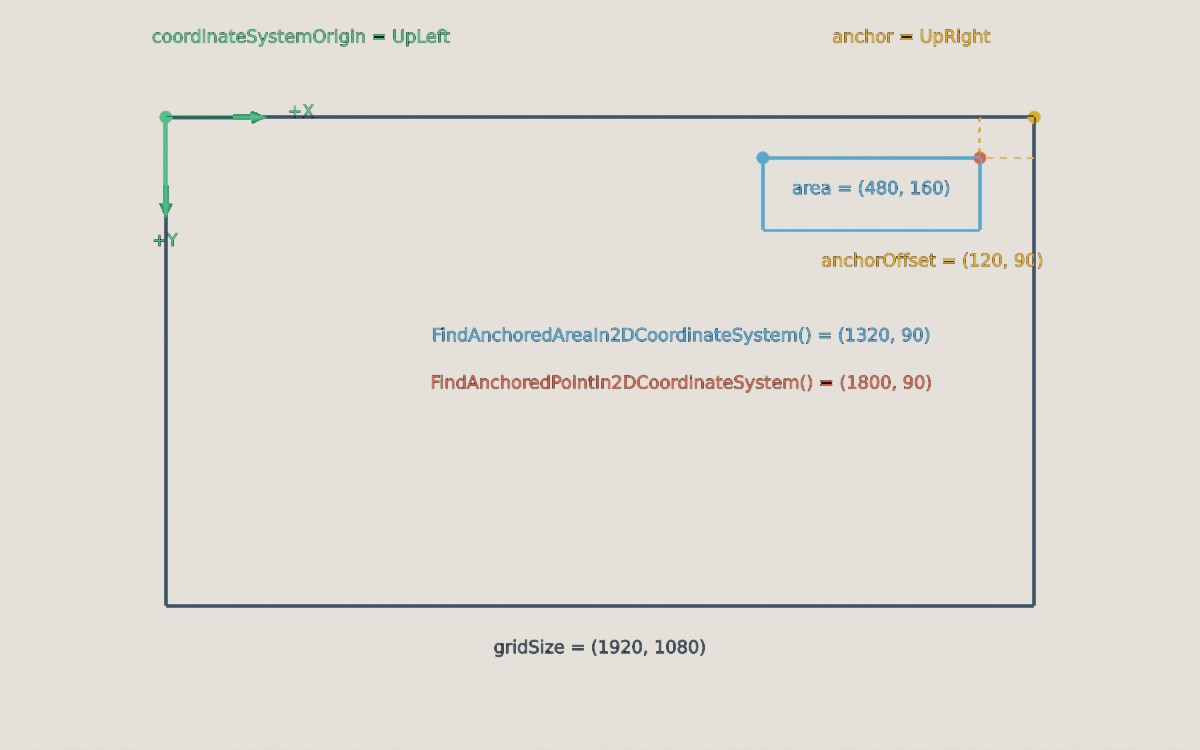
A point and an area anchored 120 pixels left of and 90 pixels below the top-right corner of a 1920x1080 grid, in coordinates measured from the top-left corner.
var point = MathUtils.FindAnchoredPointIn2DCoordinateSystem( // (1)!
    gridSize: (1920, 1080),
    coordinateSystemOrigin: DiagonalOrientation2D.UpLeft,
    anchor: Orientation2D.UpRight,
    anchorOffset: (120, 90)
);
var areaCorner = MathUtils.FindAnchoredAreaIn2DCoordinateSystem( // (2)!
    gridSize: (1920, 1080),
    coordinateSystemOrigin: DiagonalOrientation2D.UpLeft,
    anchor: Orientation2D.UpRight,
    anchorOffset: (120, 90),
    area: (480, 160)
);
var normalized = MathUtils.FindAnchorInNormalized2DCoordinateSystem( // (3)!
    DiagonalOrientation2D.DownLeft,
    Orientation2D.UpRight
);
-
Returns
(1800, 90): 120 pixels in from the right edge and 90 pixels down from the top edge. -
Returns
(1320, 90): Where to start drawing a 480x160 area so that its top-right corner sits at the anchored point (i.e. the corner of the area nearest the origin). The area grows away from its anchor rather than overlapping the edge. -
Returns
(1, 1): The position of the top-right corner in a 1x1 grid starting at the bottom-left.