Hello Cube
-
Overview View Code on Github
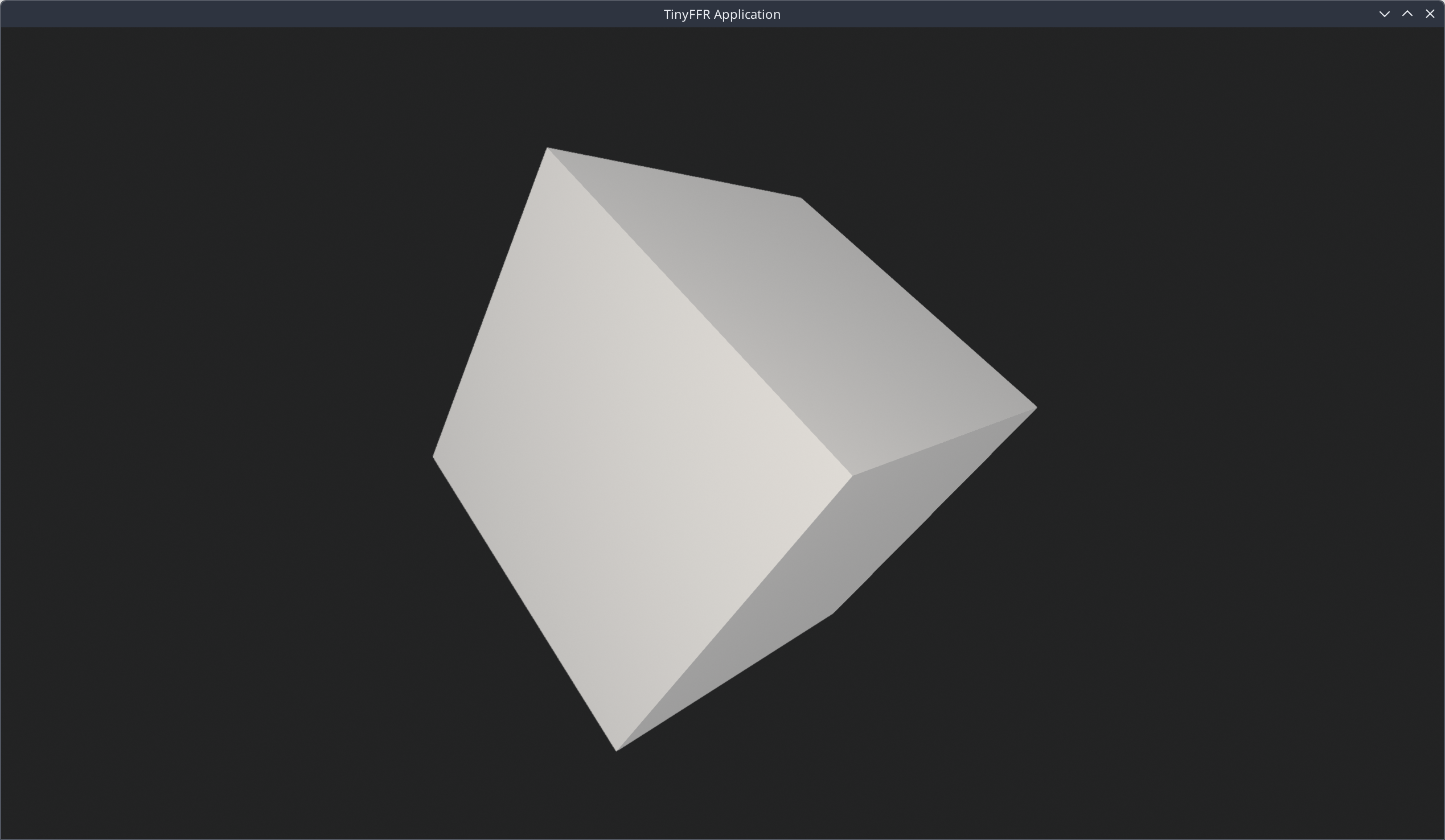
This example demonstrates the simplest possible application using TinyFFR.
This tutorial will show you how to get started with the basics of TinyFFR. In this example, we will:
- Import TinyFFR;
- Create a window;
- Create a camera;
- Create a cube;
- Make the cube spin;
- Render everything in realtime.
It's assumed that you have a reasonable familiarity with C# and .NET.
Project Setup#
This example is set up as a single-file C# script for maximum simplicity. You can copy/paste the code shown here in to hello_cube.cs anywhere on your local file system.
This example requires the .NET 10 SDK or higher installed on your system.
Running the Application#
Open a terminal or command prompt in the same directory as your hello_cube.cs and run: dotnet run hello_cube.cs -c Release.
.NET will download TinyFFR from nuget.org, compile your script, and run it. You should see a window pop up on your desktop showing a spinning cube.
Annotated Code#
This is the entirety of the "Hello Cube" example script. Click on the icons next to each line to learn more.
#:package Egodystonic.TinyFFR@*-* // (1)!

using Egodystonic.TinyFFR;
using Egodystonic.TinyFFR.Factory.Local;

using var factory = new LocalTinyFfrFactory(); // (2)!
var primaryDisplay = factory.DisplayDiscoverer.Primary ?? throw new InvalidOperationException("No display connected!"); // (3)!
using var window = factory.WindowBuilder.CreateWindow(primaryDisplay); // (4)!
using var scene = factory.SceneBuilder.CreateScene(); // (5)!
using var camera = factory.CameraBuilder.CreateCamera(initialPosition: (0f, 0f, -2f)); // (6)!
using var scenePrimitive = scene.AddPrimitive(); // (7)!

using var renderer = factory.RendererBuilder.CreateRenderer(scene, camera, window); // (8)!
using var appLoop = factory.ApplicationLoopBuilder.CreateLoop(); // (9)!

var cube = PositionedRotatedCuboid.UnitCubeAtOriginUnrotated; // (10)!
var cubeRotationPerSec = new Rotation(60f, Direction.Up) + new Rotation(25f, Direction.Right); // (11)!

while (!appLoop.Input.UserQuitRequested) { // (12)!
    var deltaTime = appLoop.IterateOnce().AsDeltaTime(); // (13)!

    cube = cube.RotatedBy(cubeRotationPerSec * deltaTime); // (14)!
    scenePrimitive.SetGeometryShape(cube); // (15)!

    renderer.Render(); // (16)!
}
-
This imports TinyFFR in to our script, using .NET's
#:packagedirective.@*selects the latest published version of TinyFFR. See Microsoft's documentation for more info: File-based-apps: #:package -
This creates a local TinyFFR factory. The factory is the main "initialization point" of any TinyFFR application; every app needs one.
The factory has various builders and discoverers that we'll use to create everything below.
The "local" factory type is currently the only type TinyFFR supplies, and it renders on the local system hardware.
-
The
factory.DisplayDiscovereris an interface that discovers and enumerates all connected displays (monitors) on your local hardware.The
DisplayDiscoverer.Primaryproperty returns the primary display as aDisplay?; where the value is onlynullif no display whatsoever is connected to the machine.In the case where we have no connected display, we use the null-coalescing operator to throw an exception and end early.
-
This line creates a
Windowthat will immediately show on your desktop.CreateWindow()has only one required parameter: TheDisplayto show the window on. We passprimaryDisplayfrom the line above. -
This line creates a
Sceneobject.Everything we ever want to render in TinyFFR must be added to a scene. You can have multiple scenes, and objects can be added to one or more scenes. Scenes can basically be thought of as "containers" for everything we want to add to the world.
-
Here we create a
Camera. Cameras specify how and where a scene's render will be 'captured'.Cameras are placed in the world and can be moved around. In the call to
CreateCamera()here we set the camera's initial position in the world asX: 0m,Y: 0m,Z: -2m.By default, cameras in TinyFFR face forward, so by placing the camera 2 metres back from the world centre we'll get a good look at our cube (that will be placed in the world centre).
-
Typically, most applications using TinyFFR will load or create meshes, textures, materials, models, animations, and so on.
In addition however, we also have the option to create
ScenePrimitives which are much simpler objects: Basic shapes, lines, points, text etc. that require no textures/mesh geometry to be usable.For our "Hello Cube" tutorial we're going to use one scene primitive; created directly for the
scene.We'll set the primitive's shape further down below.
-
Rendering anything in TinyFFR requires a
Renderer.In this case, we're creating a renderer that will take our
scene, capture it with ourcamera, and display the output to ourwindow. -
Realtime rendering typically works by rendering 30 or more frames per second in a tight loop.
TinyFFR abstracts this loop in to an
ApplicationLoopobject, created viafactory.ApplicationLoopBuilder.CreateLoop(). -
This line defines a
PositionedRotatedCuboid: A cuboid shape (i.e. an object with width, height, and depth) that can also be positioned (placed in the world) and rotated.We initialize
cubevia the public static readonly fieldUnitCubeAtOriginUnrotated. As its name implies, this returns a 1m x 1m x 1m cube positioned at the world origin (center) with no rotation. -
Here we define a
RotationcalledcubeRotationPerSec. This will define how much the cube will rotate per second.The result is the combination of two individual rotations together: 60° around the up/down axis (
new Rotation(60f, Direction.Up)) plus 25° around the left/right axis (new Rotation(25f, Direction.Right)). -
This line starts our render loop as a
whileloop.The loop will continue rendering frames until the user requests a quit (typically via the X button on a window or some key combination such as Alt+F4).
User input is updated via the
appLoopand exposed viaappLoop.Input. Handling user input is explained in the next tutorial; for now all you need to know is thatappLoop.Input.UserQuitRequestedwill returntruewhen the user wishes to exit the program. -
appLoop.IterateOnce()returns aTimeSpantelling you how long has elapsed since the previous frame.The
AsDeltaTime()extension converts that to afloatrepresenting the 'deltaTime' as a number of seconds (e.g. at 60 FPSdeltaTimewill typically be0.01667f). -
Here we alter
cubeby rotating it bycubeRotationPerSec * deltaTime.The multiplication by
deltaTimeis what makes thecubeRotationPerSecactually a per-second value, becausedeltaTimerepresents the fraction of a second that's actually elapsed since the previous frame. -
This sets
scenePrimitive's geometry to the latest version of ourcube. -
Finally, now that our
scenePrimitivehas been altered, we render the latest frame (using therenderer's targetscene,camera, andwindow).
Additional Notes#
Disposing Resources#
Note that many lines above start with using; denoting that the resources returned by the factory need to be disposed. Because many things you'll create with TinyFFR represent real native memory or resources, you must dispose them when no longer needed.
C#'s using syntax means that everything we create here will be disposed in reverse order, which is correct.
DeltaTime#
Using deltaTime means your application's animation has the same speed regardless of your framerate. It also means the occasional dropped or hitched frame does not make your animation seemingly "jump" or "freeze".
In a toy example like "Hello Cube", this ultimately isn't that important. But for more complex applications you'll generally want consistency, so it's important to multiply any time-dependent code by your given deltaTime.
Stuff to Tinker With#
Sometimes the best way to learn is by just getting stuck-in, so before moving on to the next tutorial here are some things you can experiment with (with links to relevant documentation pages).
- Creating / Managing Windows: You could try setting the window title + icon, or programmatically changing its size or even its fullscreen state.
- Camera Settings: You could try moving the camera or even animating it.
- Scene Primitives: You could change the scene primitive shape, colour, render style, or add more.
- Scene Backdrops: You could change the background colour of the scene, or even add a backdrop.
Where to Get Support#
As you work with TinyFFR you'll inevitably need some help; or maybe you'll want to request a feature or report a bug.
The Support page has links to the TinyFFR Discord server as well as the GitHub discussions + issues spaces; both are great places to seek help. Finally, every page on this site has a comments section at the bottom that is closely monitored-- check below to see if anyone's had the same issue as you!