Interpolation Algorithms
-
 In a nutshell...
- Almost every TinyFFR math/geometry type has a static
Interpolate(start, end, distance)method that finds a value part-way between two others. Interpolation - An
InterpolationAlgorithm<T>chooses how a value travels from start to end, e.g. starting slowly and speeding up, or overshooting and settling back. Interpolation Algorithms
- Almost every TinyFFR math/geometry type has a static
Interpolation#
Interpolating means finding a value part-way between a start and an end value. Most TinyFFR math types (including Location, Direction, Vect, Angle, Rotation, Transform, XYPair<T>, ColorVect, and the line and shape types) have a static Interpolate() method for this:
var halfway = Location.Interpolate(start, end, 0.5f); // (1)!
var halfTurn = Rotation.Interpolate(Rotation.None, 90f % Direction.Up, 0.5f); // (2)!
var beyond = Location.Interpolate(start, end, 1.5f); // (3)!
-
The location exactly halfway between
startandend. Adistanceof0fgivesstart, and1fgivesend. -
45° around
Up: halfway between no rotation and 90° aroundUp. -
Most types also accept distances outside the range 0 to 1, continuing past the start or end (here, half as far again beyond
end).
Interpolate() always moves at a constant, linear rate (i.e. a distance of 0.25f is always a quarter of the way from start to end).
Interpolation Precomputation
Direction, Rotation, Line, Ray, and Plane can do some of the work up front if you're going to interpolate between the same two values many times (e.g. every frame of an animation): CreateInterpolationPrecomputation(start, end) returns a value you can pass to InterpolateUsingPrecomputation(start, end, precomputation, distance).
Interpolation Algorithms#
An InterpolationAlgorithm<T> changes how a value travels from its start to its end (often called easing). For example, a door that starts opening slowly and then speeds up, or a menu that slides in quickly and then slows to a stop, look far more natural than ones that move at a constant speed.
var algorithm = InterpolationAlgorithm<Location>.DecelerateFromFast(); // (1)!
var position = algorithm.GetValue(start, end, 0.5f); // (2)!
var timed = algorithm.GetValue(start, end, MathF.Min(elapsedSeconds, 2f), 2f); // (3)!
-
An algorithm for
Locations that starts quickly and slows down as it reaches the end ("ease-out"). -
The location at the halfway point in time, which (because this algorithm starts quickly) is 75% of the way from
starttoend. -
The same, but working out the distance as
elapsedSeconds / 2f, i.e. for a movement that takes 2 seconds. TheMathF.Min()stops the value continuing pastendonce the 2 seconds are up.
The <T> type argument must be anything that implements IInterpolatable<T> (which many, many types in TinyFFR do implement).
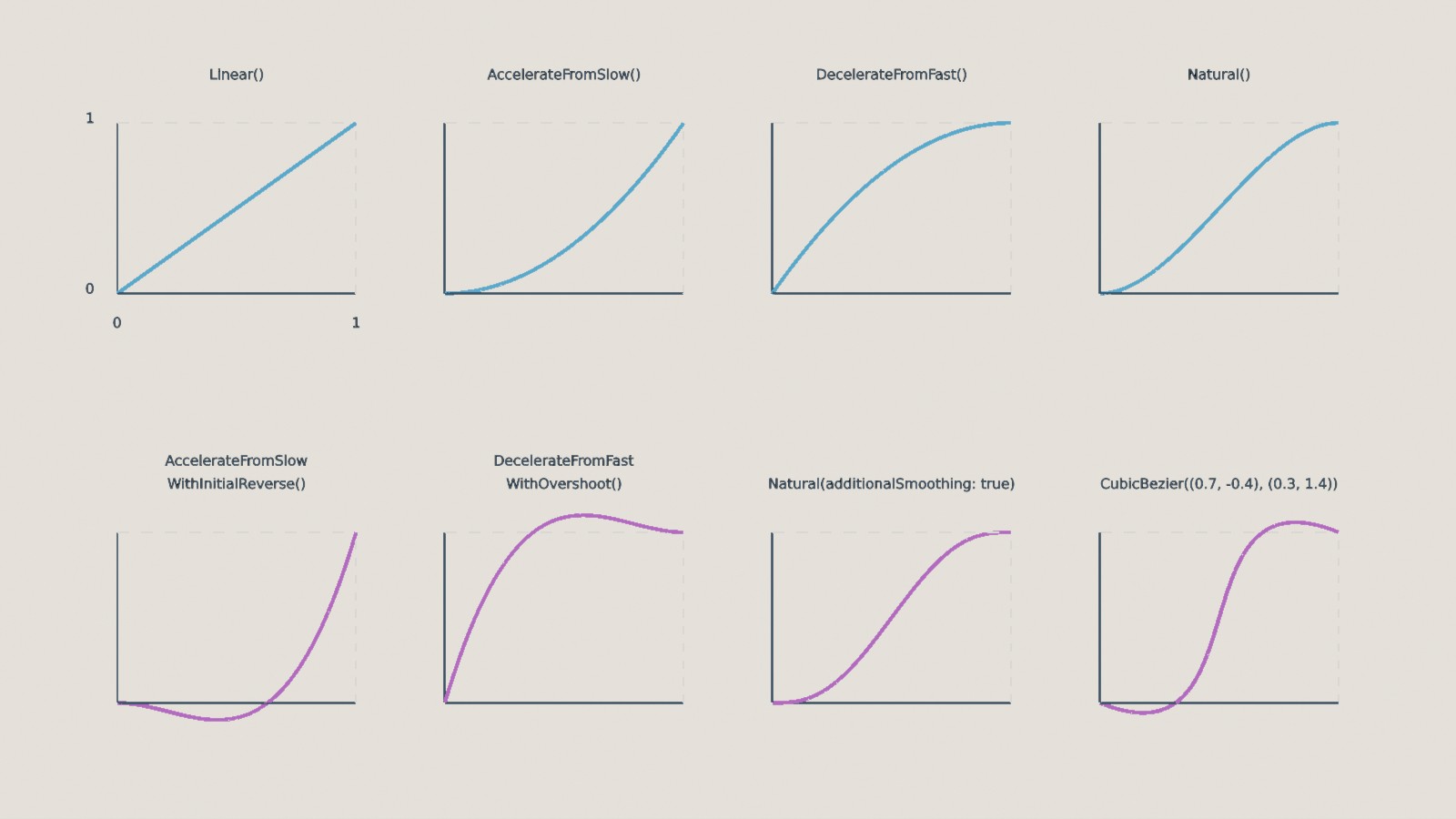
Each built-in algorithm's output (from start at the bottom to end at the top) as its input distance goes from 0 to 1 (left to right). The algorithms in the bottom row overshoot start or end on the way.
The static factory methods on InterpolationAlgorithm<T> can be used to select an algorithm (e.g. InterpolationAlgorithm<Location>.Linear()):
-
Linear() -
No easing. The value moves at a constant rate, exactly as with the static
T.Interpolate(). -
AccelerateFromSlow(strength)/DecelerateFromFast(strength) -
Starts slowly and speeds up towards the end ("ease-in"), or starts quickly and slows down towards the end ("ease-out").
-
Natural(additionalSmoothing) -
Starts slowly, speeds up through the middle, and slows down again at the end ("ease-in-out", sometimes called "smoothstep"). Passing
additionalSmoothing: truesoftens the very start and end even further (also known as "smootherstep"). -
AccelerateFromSlowWithInitialReverse(strength) -
Moves briefly backwards (past
start) before speeding up towardsend, like winding up before a throw. -
DecelerateFromFastWithOvershoot(strength) -
Moves quickly, overshoots past
end, and then settles back to it. -
CubicBezier(firstCoord, secondCoord) -
A curve shaped by two control points, in the same way as CSS's
cubic-bezier()timing function. The curve always runs from(0, 0)to(1, 1); the two control points pull it into shape, and their Y values can go outside 0 to 1 to overshoot. cubic-bezier.com is a handy way to design a curve and find its control points. -
Custom(...) -
Used to supply your own algorithm. See below.
Strength#
The algorithms that take a strength (an InterpolationStrength, defaulting to Moderate) can be made more or less pronounced:
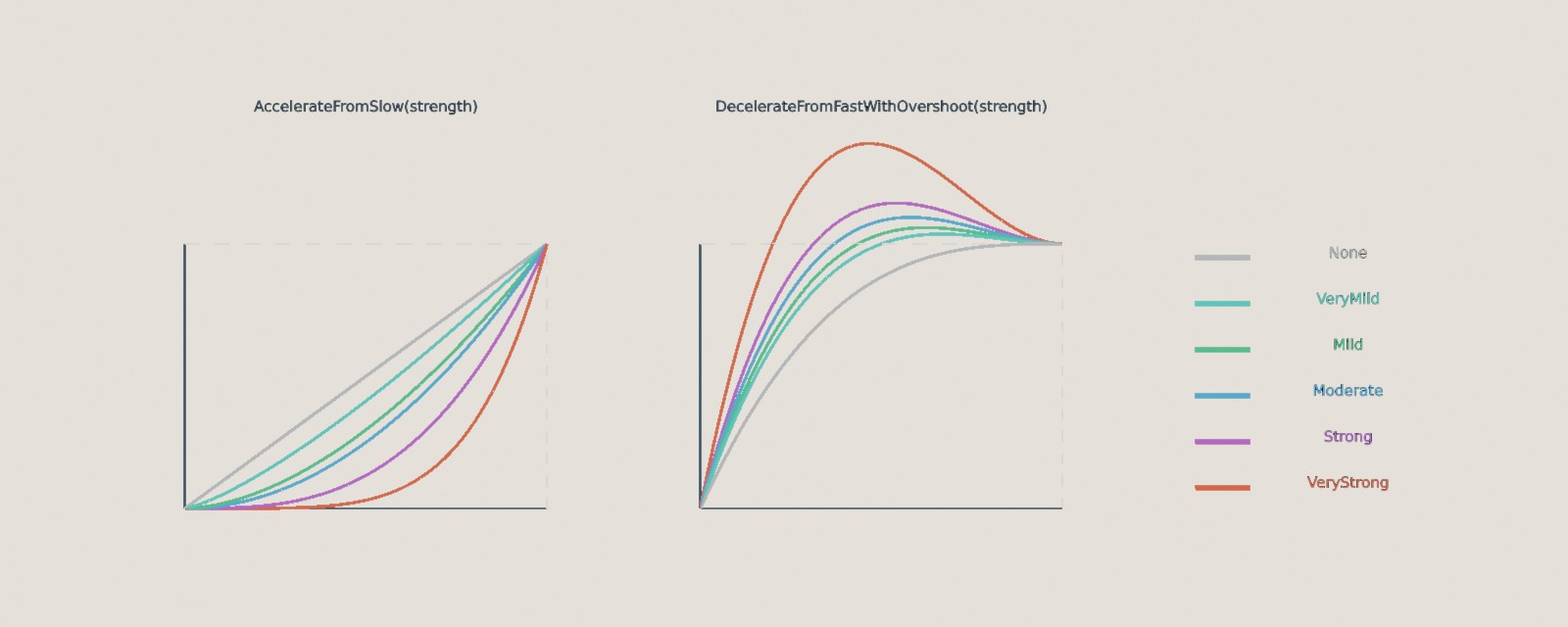
Each InterpolationStrength value, applied to AccelerateFromSlow() and DecelerateFromFastWithOvershoot().
For finer control, each also has an overload taking a float instead of an InterpolationStrength. This is an exponent for AccelerateFromSlow() and DecelerateFromFast() (where 1f is linear and 2f is Moderate), or a coefficient for the reverse/overshoot algorithms (where 0f means no reverse or overshoot and 1.70158f is Moderate, overshooting by about 10%).
Custom Algorithms#
You can supply your own algorithm with Custom(). It takes a pointer to a static method (rather than a delegate, so that algorithms never allocate memory), plus up to four float parameters that are passed to the method each time it runs:
static unsafe InterpolationAlgorithm<T> CreateSteppedAlgorithm<T>(int stepCount) where T : IInterpolatable<T> { // (1)!
    return InterpolationAlgorithm<T>.Custom(&Stepped, new(stepCount)); // (2)!

    static T Stepped(T start, T end, InterpolationAlgorithm<T>.StaticParameterGroup parameters, float linearDistance) {
        var steppedDistance = MathF.Floor(linearDistance * parameters.A) / parameters.A; // (3)!
        return T.Interpolate(start, end, steppedDistance); // (4)!
    }
}

var steppedPositions = CreateSteppedAlgorithm<Location>(4); // (5)!
var steppedColors = CreateSteppedAlgorithm<ColorVect>(10);
-
Tcan be any type that can be interpolated: thewhere T : IInterpolatable<T>constraint is what allowsStepped()to callT.Interpolate()below. Every TinyFFR type with a staticInterpolate()method implementsIInterpolatable<T>, so this one method creates a stepped algorithm for all of them. -
&Steppedis a pointer to the method below (which requires anunsafecontext).new(stepCount)creates aStaticParameterGroupwithAset tostepCount(itsB,C, andDare left as0f). -
Rounds the distance down to the nearest step, so the value jumps from one position to the next rather than moving smoothly (e.g. with 4 steps, any distance from
0.5fup to0.75fbecomes0.5f). -
Uses the type's own
Interpolate()to find the actual value at that distance (e.g.Location.Interpolate()whenTisLocation). -
A stepped algorithm for
Locations, moving in 4 steps; and one forColorVects, changing colour in 10 steps.