Directional Lights
-
 In a nutshell...
- A directional light lights the whole scene from one direction, like the sun. Directional Lights
- It can also draw a visible sun disc in the sky. Sun Disc
- A scene can only contain one directional light. One Per Scene
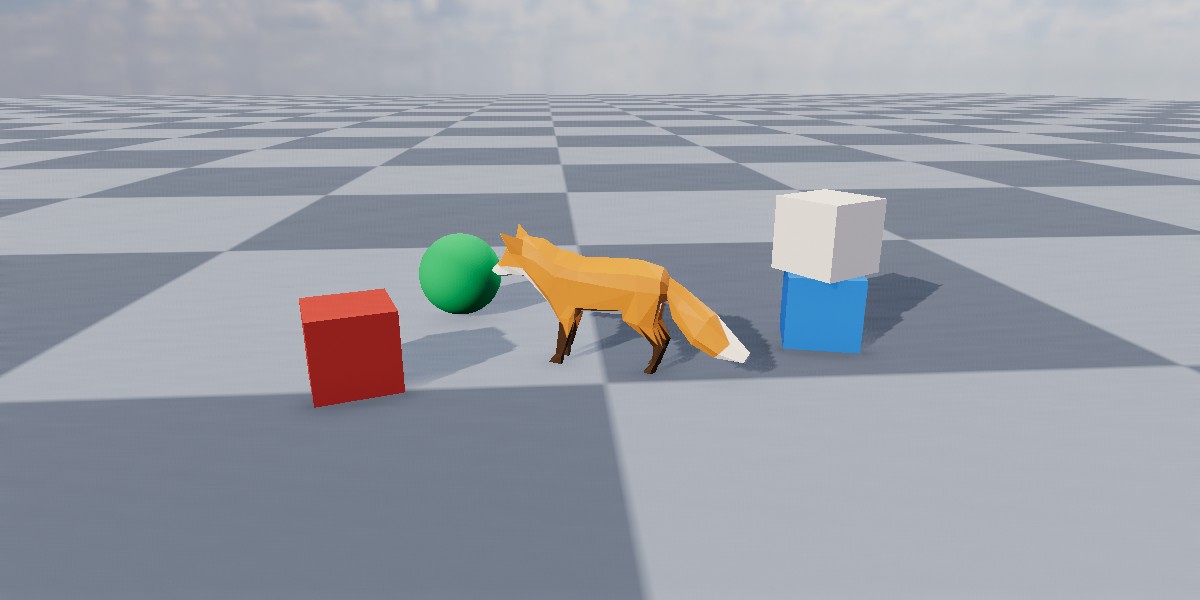
A directional light with the colour and brightness of midday sunlight, lighting a fox and several objects, with shadows enabled.
Directional Lights#
using var sun = factory.LightBuilder.CreateDirectionalLight( // (1)!
    direction: new Direction(0f, -1f, 0.5f),
    color: StandardColor.LightingSunMidday,
    castsShadows: true,
    showSunDisc: true
);
scene.Add(sun); // (2)!
-
Creates a directional light shining down and forward, with the colour of midday sunlight, casting shadows, and drawing a sun disc in the sky.
-
Adds the light to a scene. A light only illuminates the scenes it has been added to.
A DirectionalLight lights the entire scene from a single direction. It has no position and no falloff; instead it's treated as being infinitely far away and uniform, so every object in the scene is lit from the same angle with the same intensity. This makes it the right way to model the sun or the moon.
Creating Directional Lights#
Directional lights are created with factory.LightBuilder.CreateDirectionalLight(), which accepts the following optional parameters (or alternatively a DirectionalLightCreationConfig with equivalent properties):
-
direction -
The direction the light travels in. Defaults to mostly downward and slightly forward, approximating afternoon sunlight. See Direction.
-
color,castsShadows -
The light's colour (default white) and whether it casts shadows (default
false). See Point Lights. -
brightnessPreset -
How much light the light casts, as a time of day or weather (e.g.
DirectionalLightBrightnessPreset.Midday). Ignored ifbrightnessis also specified. See Brightness. -
brightness -
How much light the light casts. Defaults to
1f(the light of a well-lit interior). See Brightness. -
showSunDisc -
Whether the light draws a visible disc in the sky. Defaults to
false. Can only be set at creation. See Sun Disc. -
name -
An optional name for the light.
Direction#
A directional light's Direction is the direction its light travels; i.e. the direction its rays move, not the direction pointing towards the light source. So for a sun directly overhead, the direction should be downward.
Because a directional light has no position, its direction is the only thing that determines how objects are lit by it, and which way their shadows fall. A directional light's RotateBy() methods rotate its direction.
Brightness#
Every light's Brightness is a relative value, where 1f is the default strength for that kind of light. This makes it easy to adjust lights of different kinds in the same terms ("half as bright", "twice as bright").
light.Brightness = 2f;
light.ScaleBrightnessBy(1.5f); // (1)!
light.AdjustBrightnessBy(-1f); // (2)!
-
Multiplies the brightness by 1.5 (so
2fbecomes3f). -
Adds -1 to the brightness (so
3fbecomes2f). The result never goes below0f.
The default values for brightness are set up to co-ordinate with the default value of the camera's exposure. For more information, see Exposure & Brightness.
Sun Disc#
A directional light created with showSunDisc: true draws a visible disc in the sky where its light comes from. The disc is drawn against the scene's backdrop, so it's only visible where the backdrop is.
The disc's appearance can be adjusted with SetSunDiscParameters():
sun.SetSunDiscParameters(new SunDiscConfig {
    Scaling = 2f, // (1)!
    FringingScaling = 0.5f, // (2)!
    FringingOuterRadiusScaling = 1.5f // (3)!
});
-
Doubles the size of the disc itself.
-
Halves the brightness of the halo of light around the disc (the bloom that surrounds a bright light seen through an atmosphere).
0fleaves a hard-edged disc with no glow. -
Widens how far the halo spreads outward.
Each property defaults to 1f (the disc's natural appearance).
One Per Scene#
A scene can contain at most one directional light. If a scene already contains a directional light, adding another has no effect (the second light is not added). Remove the first directional light before adding a different one.
A single directional light can still be added to several different scenes.
Colour#
A light's Color tints the light itself, not the objects it falls on. A red light leaves a white surface looking red; but a surface that reflects no red at all stays dark no matter how bright the light is.
StandardColor has a number of presets for common real-world light sources (StandardColor.LightingCandle, LightingIncandescentBulb, LightingSunRiseSet, LightingSunMidday, LightingAmbientDaylight, LightingAmbientOvercast, and LightingAmbientShaded).
A light's colour can also be adjusted in terms of hue, saturation, and lightness via its ColorHue, ColorSaturation, and ColorLightness properties (and the corresponding AdjustColor[...]By() methods).
Shadows#
Setting a light's CastsShadows to true makes the objects it lights cast shadows from it:
Shadows are calculated separately for each light that casts them, and are one of the more expensive things a scene can ask for. It's therefore common to enable shadows only for the one or two lights that most define a scene's look, and leave the rest without shadows.
The quality of shadows (and whether they're rendered at all) is set per renderer, via the ShadowQuality and ShadowsEnabled properties of its RenderQualityConfig; see Render Quality.
Shadow Distance & Stabilization#
A directional light's shadows cover everything the camera can see, so their detail has to be shared across every distance from the camera. Two properties control how:
-
Concentrates the light's shadow detail within 40 metres of the camera.
-
Holds the shadows steady as the camera moves and turns, at the cost of some sharpness.
-
MaxShadowDistance -
How far from the camera the light's shadows are drawn in detail. Defaults to
100f(DirectionalLight.DefaultMaxShadowDistance). Smaller values give sharper shadows close to the camera; beyond the distance, shadows fade out. -
In compact scenes (a room, a tabletop) the default rarely needs changing, as shadow detail is already focused on the scene's contents. In large scenes (terrain, long halls, open landscapes), set it to roughly the furthest distance at which shadows still need to look good.
-
EnableShadowStabilization -
Whether the light's shadows are stabilized against camera movement. Defaults to
false. -
By default, shadows are refitted to the camera's view and the scene's contents every frame. This gives the sharpest result, but shadow edges can shimmer or crawl slightly as the camera moves or turns. Enabling stabilization holds them steady, but they're no longer fitted to the scene's contents, so their detail is spread across the whole view up to
MaxShadowDistance.When enabling shadow stabilization, you should set
MaxShadowDistanceas low as possible to cover your scene.
Low Suns
A low sun (one close to the horizon) stretches each part of a shadow across a long stretch of ground, which makes blocky or shimmering shadow edges much more visible on floors and terrain.
If long shadows from a low sun look blocky, reduce MaxShadowDistance towards the distance you actually need. If they shimmer as the camera moves in a large open scene, also enable EnableShadowStabilization. Avoid stabilization in compact scenes, where it makes shadows noticeably blurrier (and can make small shadows disappear entirely at low ShadowQuality levels).