Loading Meshes
-
 In a nutshell...
- You can load mesh geometry from a file using
assetLoader.LoadMesh(@"Assets/crate.obj"). Mesh Files - If you want to enable wireframe viewing, it needs to be enabled here. Wireframe Data
- You can load every sub-mesh in a file as a separate
Mesh(along with any shared skeleton and animations) usingassetLoader.LoadMeshGroup(@"Assets/character.glb"). Mesh Groups
- You can load mesh geometry from a file using
Mesh Files#
using var crateMesh = factory.AssetLoader.LoadMesh(@"Assets/crate.obj"); // (1)!
using var crateColorTex = factory.AssetLoader.LoadColorMap(@"Assets/crate_albedo.bmp");
using var crateMat = factory.MaterialBuilder.CreateStandardMaterial(crateColorTex);
using var crateInstance = factory.ObjectBuilder.CreateModelInstance(crateMesh, crateMat); // (2)!
scene.Add(crateInstance); // (3)!
-
This line instructs TinyFFR to load the "crate.obj" mesh file from "Assets/crate.obj".
The returned
crateMeshis aMesh(explained below). -
This line creates a single ModelInstance using the
crateMeshand a Material. -
This line adds the newly-instantiated model instance to a pre-existing Scene; ready to be rendered.
It's possible to load mesh (vertex) data from common mesh file formats such as .obj, as well as from transmission formats such as .gltf etc.
Note that LoadMesh() only loads geometry: any materials described in the file are ignored, and if the file contains multiple meshes they are combined in to a single Mesh (unless you select a specific sub-mesh). If you want to load each of a file's meshes separately, use LoadMeshGroup(); if you want to load them together with their materials and textures, use LoadBundledAsset() instead.
LoadMesh() returns a Mesh object. A Mesh instance represents vertex/polygon data uploaded on to your GPU's VRAM, and should be disposed when no longer required.
You can combine a Mesh with a Material to create a ModelInstance which is then placeable in a Scene.
Supported Formats
TinyFFR can load mesh data (where specified) from the following asset formats.
- 3D
- 3DS
- 3MF
- AC
- AC3D
- ACC
- AMF
- ASE
- ASK
- ASSBIN
- B3D
- BLEND
- BSP / PK3
- BVH
- CSM
- COB
- DAE/ZAE/Collada
- DXF
- ENFF
- FBX
- glTF 1.0 + GLB
- glTF 2.0
- HMP
- IFC-STEP / IFCZIP
- IQM
- IRR / IRRMESH
- LWO
- LWS
- LXO
- MD2
- MD3
- MD5
- MDC
- MDL
- MESH / MESH.XML
- MOT
- MS3D
- NDO
- NFF
- OBJ
- OFF
- OGEX
- PLY
- PMX
- PRJ
- Q3O
- Q3S
- RAW
- SCN
- SIB
- SMD
- STP
- STL
- TER
- UC
- VRM
- VTA
- X
- X3D / X3DB
- XGL
- ZGL
Customizing the Load Operation#
You can pass a MeshCreationConfig and MeshReadConfig to LoadMesh(...) to customize how the mesh data should be loaded:
Rescaling#
var mesh = factory.AssetLoader.LoadMesh(
    @"Assets/crate.obj",
    new MeshCreationConfig { LinearRescalingFactor = 0.01f } // File was authored in centimetres
);
TinyFFR works in metres, but mesh files are often authored in other units. meshCreationConfig.LinearRescalingFactor scales every vertex of the mesh uniformly as it is loaded, letting you convert the file's units in to metres (e.g. 0.01f for a mesh authored in centimetres, or 1f / 3.28084f for one authored in feet). The default is 1f (no rescaling).
Only a single factor is offered (applying equally to every axis) because the normal and tangent data baked in to a mesh only stays correct under uniform scaling. If you want to stretch a mesh along one axis, you can still apply non-uniform scaling to each ModelInstance after it's created.
Setting a negative value mirrors the mesh through its origin, which also turns it inside-out.
Adjusting the Local Origin#
var mesh = factory.AssetLoader.LoadMesh(
    @"Assets/crate.obj",
    new MeshCreationConfig { OriginTranslation = (0f, 1f, 0f) } // Move origin up by 1 unit
);
A mesh's local origin is the point that ends up exactly at a ModelInstance's Position, and is the point it rotates and scales around by default. Mesh files don't always put the origin where you'd like it; for example, a character mesh might be exported with its origin at its feet when you'd rather place it by its centre, or a door mesh might be exported with its origin at its centre when you'd like it to rotate around its hinge.
meshCreationConfig.OriginTranslation lets you move the origin as the mesh is loaded. The value specifies where the new origin should be relative to the current one; every vertex is moved by the inverse of this value. For example, passing new Vect(0f, 1f, 0f) moves the origin up by one unit, which means every vertex moves down by one unit. The default is Vect.Zero (no change).
Specify the translation in the file's units
The origin translation is applied before the LinearRescalingFactor. This means the translation should be specified in the mesh file's original units, not in the rescaled (metres) units.
Correcting Inside-Out Meshes#
var mesh = factory.AssetLoader.LoadMesh(
    @"Assets/crate.obj",
    new MeshCreationConfig {
        FlipTriangles = true
    },
);
TinyFFR only draws the front face of each triangle, and which side counts as the "front" is determined by the order of the triangle's vertices (anticlockwise when viewed from the front).
If a mesh is exported with the opposite convention (i.e. clockwise winding order), you can use meshCreationConfig.FlipTriangles to fix it.
MeshReadConfig.CorrectFlippedOrientation
Note that meshReadConfig.CorrectFlippedOrientation also exists (and is true by default); this is an import-level correction to malformed data and does not apply to otherwise-legitimate data that happens to be exported with the incorrect winding order.
If you find TinyFFR's importer is actively breaking your winding order you can try disabling CorrectFlippedOrientation.
Optimisation & Error-Correction#
var mesh = factory.AssetLoader.LoadMesh(
    @"Assets/crate.obj",
    new MeshCreationConfig(),
    new MeshReadConfig {
        FixCommonExportErrors = true, // True by default
        OptimizeForGpu = true // True by default
    }
);
-
meshReadConfig.FixCommonExportErrors -
Exported meshes frequently contain small defects. When this option is
true(the default), TinyFFR attempts to repair common problems(1) as the file is read.- Common fixes include removing degenerate triangles (those with no area), removing invalid data, and fixing normals that point inwards.
You should only set this to
falseif the repairs themselves are damaging a particular mesh. -
meshReadConfig.OptimizeForGpu -
When this option is
true(the default), TinyFFR spends extra time as the file is read reordering and restructuring the mesh data so that the GPU can render it faster. This includes reordering vertices for better cache usage, merging meshes and scene nodes where possible, and detecting duplicated meshes.Setting this to
falseshortens load times, potentially at the cost of rendering performance (depending on how well-optimized the mesh file already is).Optimization can change sub-mesh numbering
Because optimization can merge sub-meshes together, the number and order of sub-meshes in a file can differ depending on whether this option is enabled. Make sure you use the same
MeshReadConfigwhen reading a file's sub-mesh count as when loading a sub-mesh from it.
Wireframe Data#
var mesh = factory.AssetLoader.LoadMesh(
    @"Assets/crate.obj",
    new MeshCreationConfig {
        WireframeGenerationMode = WireframeGenerationMode.EnabledWithEdgeDeduplication
    },
);
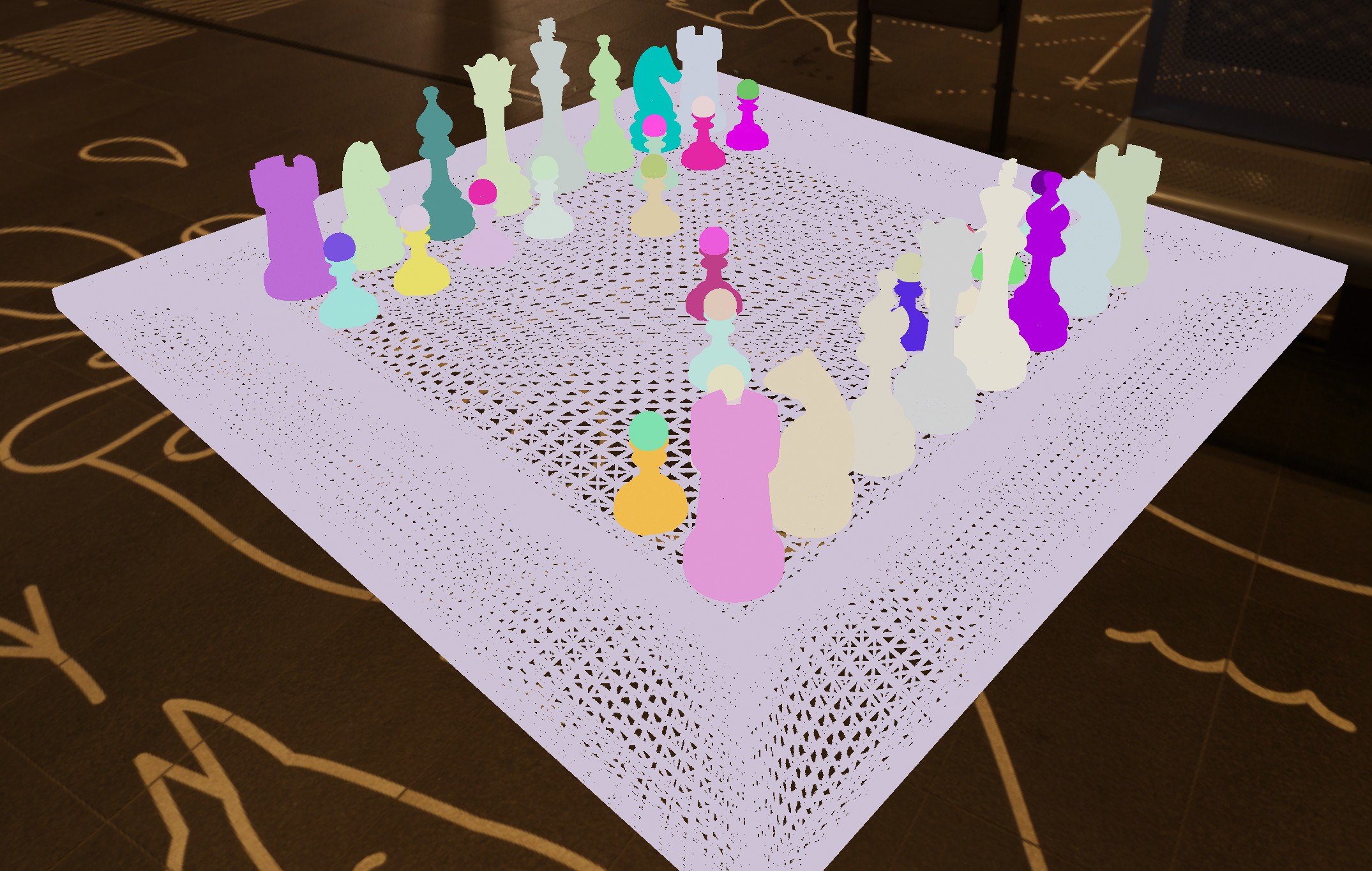
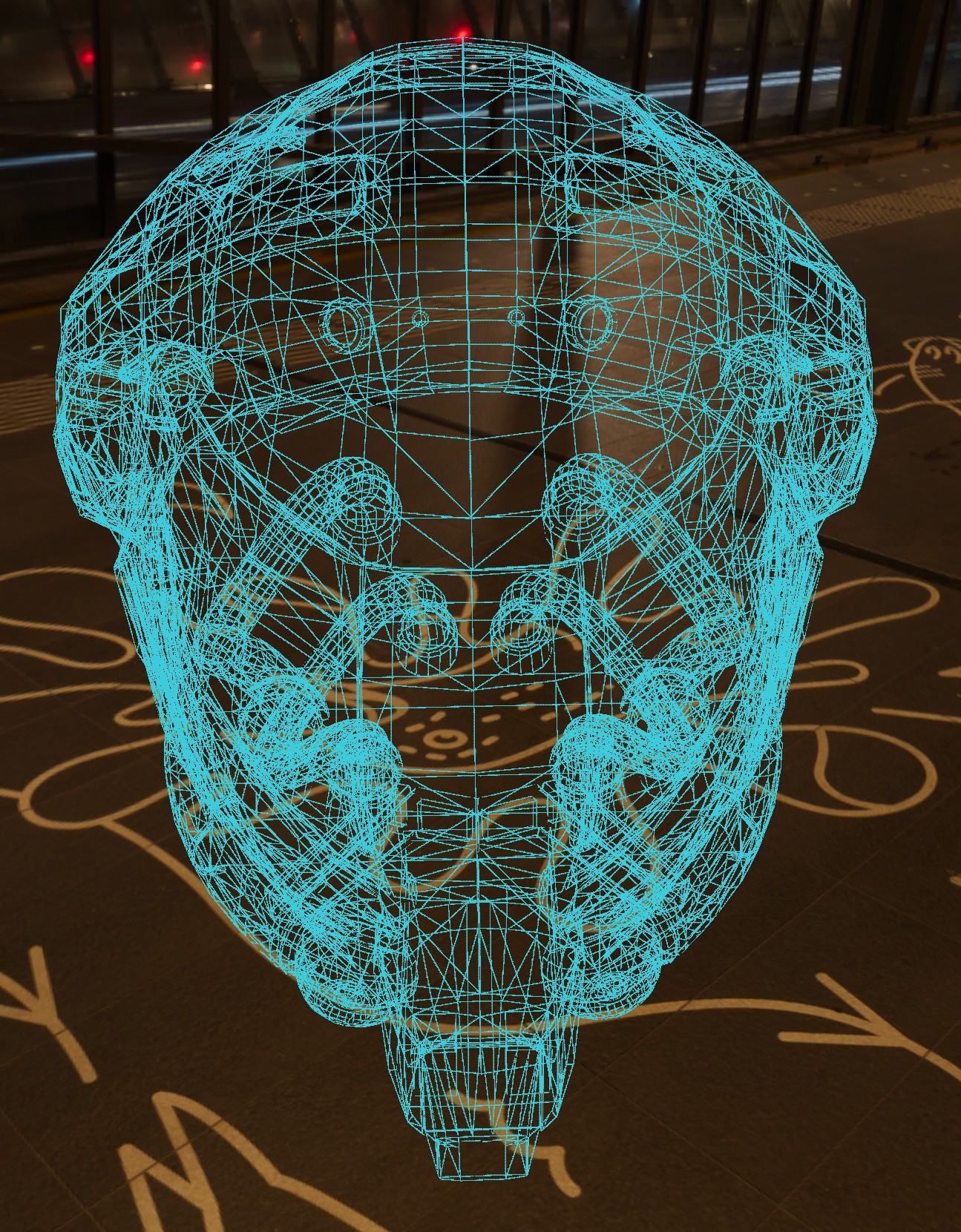
In order to render wireframe data for any given mesh, you should set the meshCreationConfig.WireframeGenerationMode to anything other than Disabled:
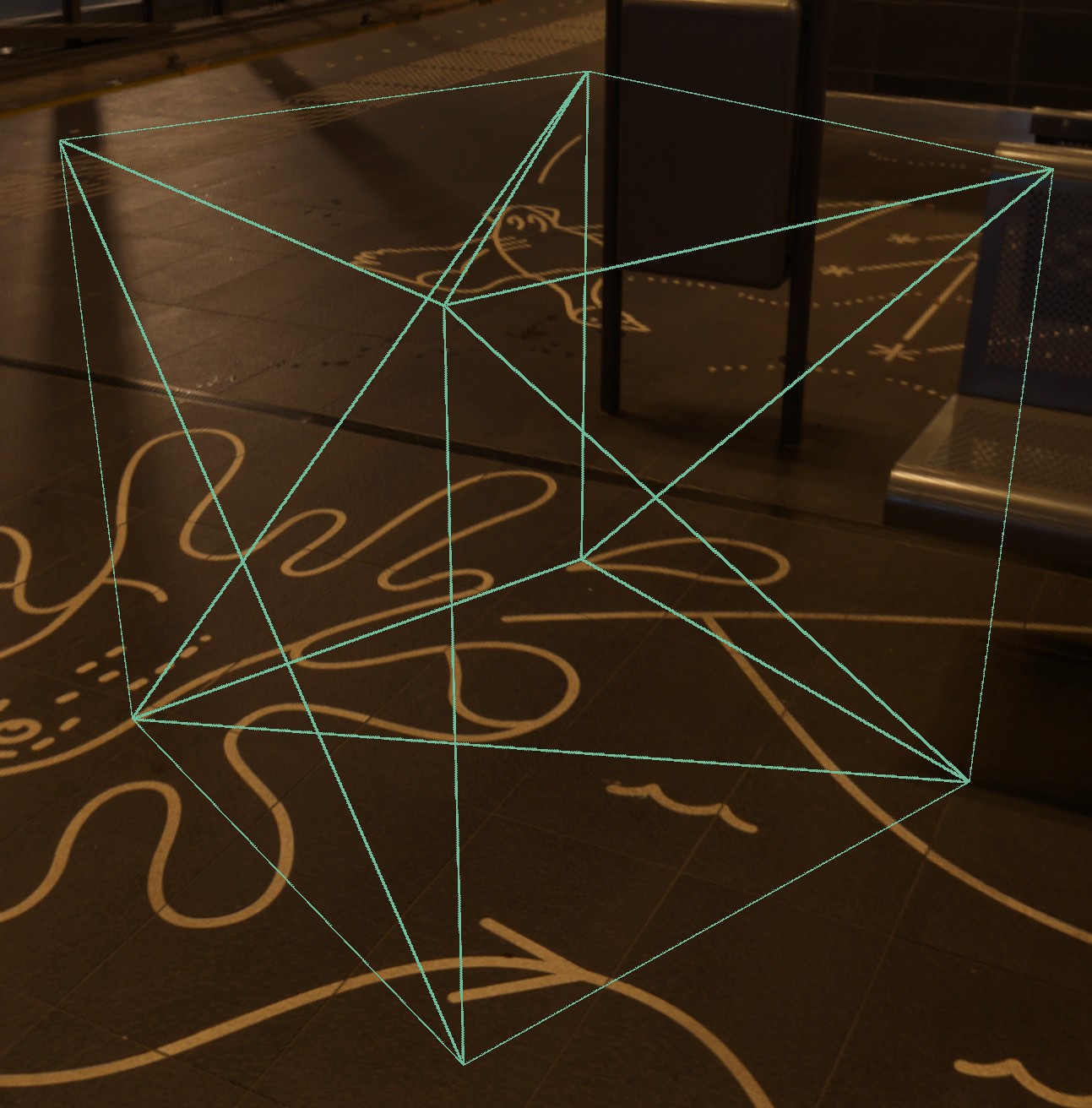
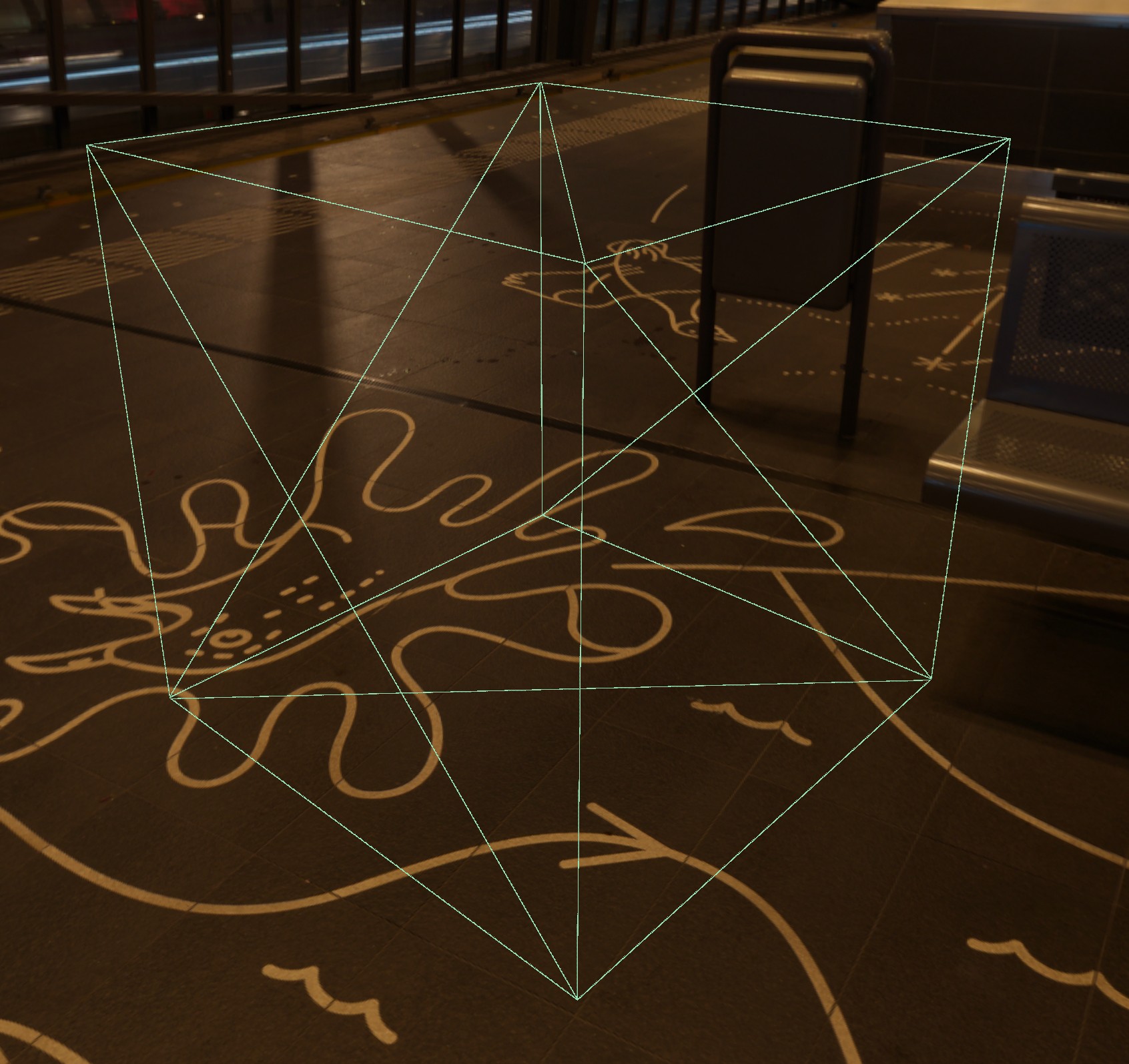
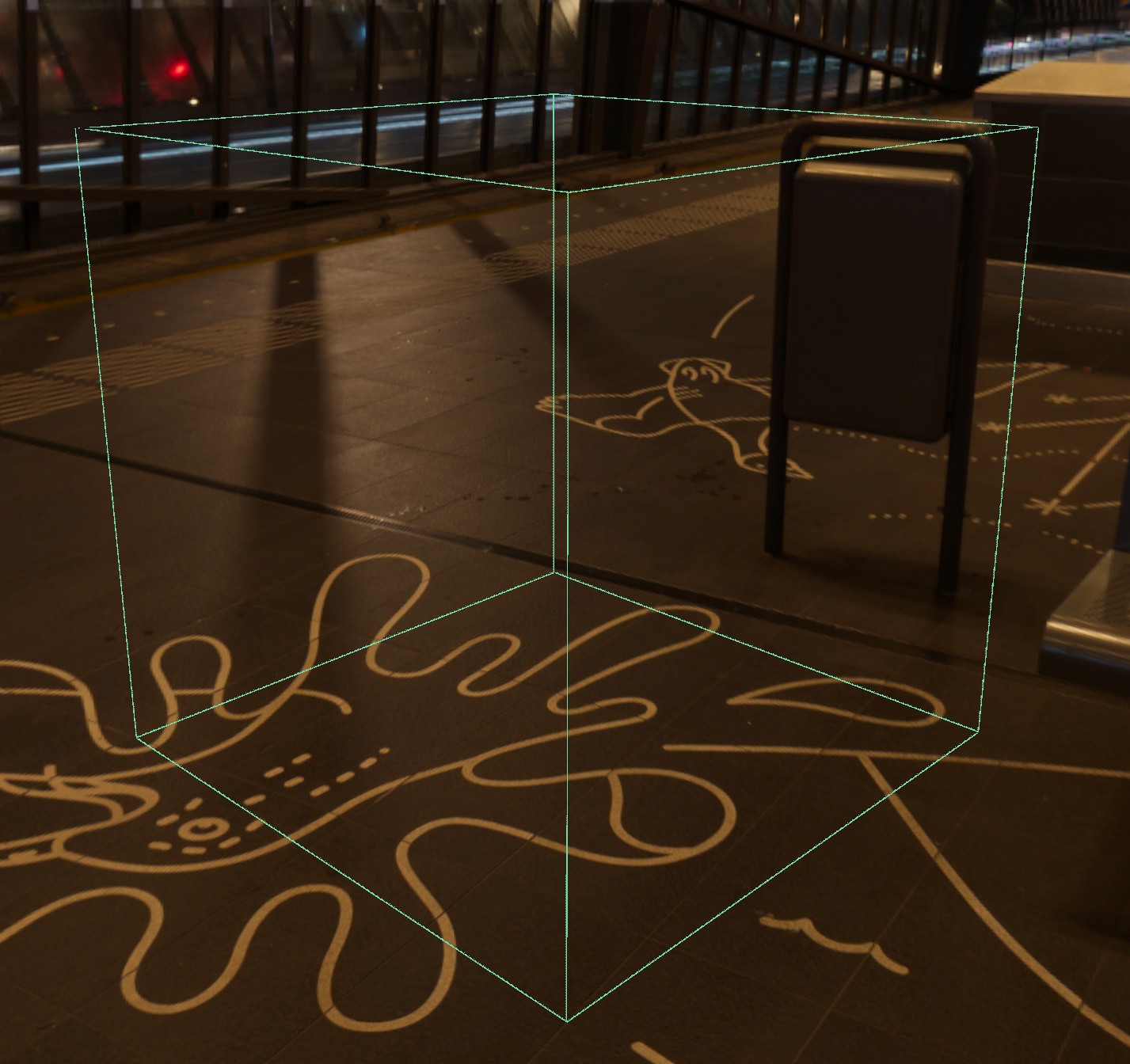
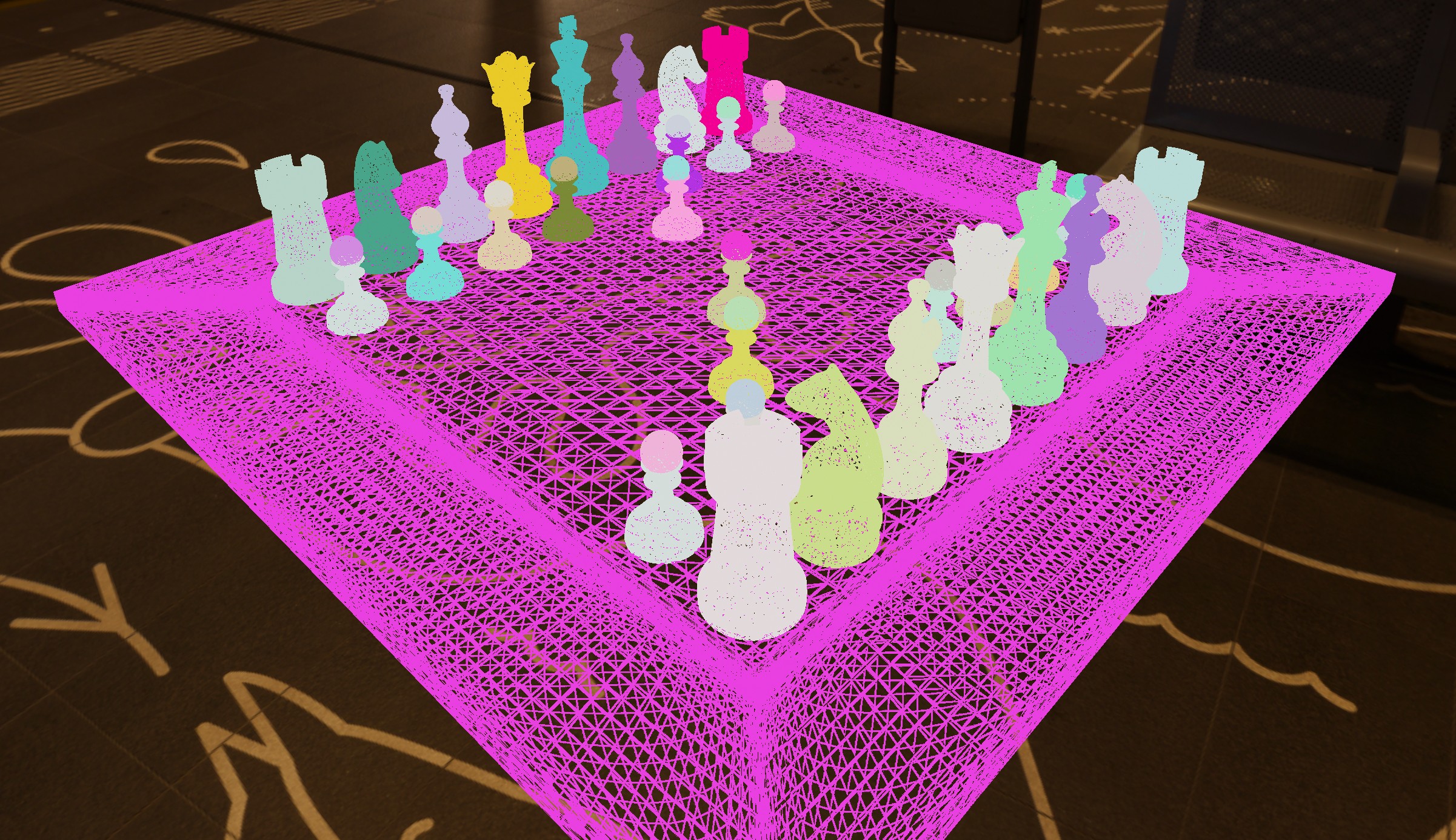
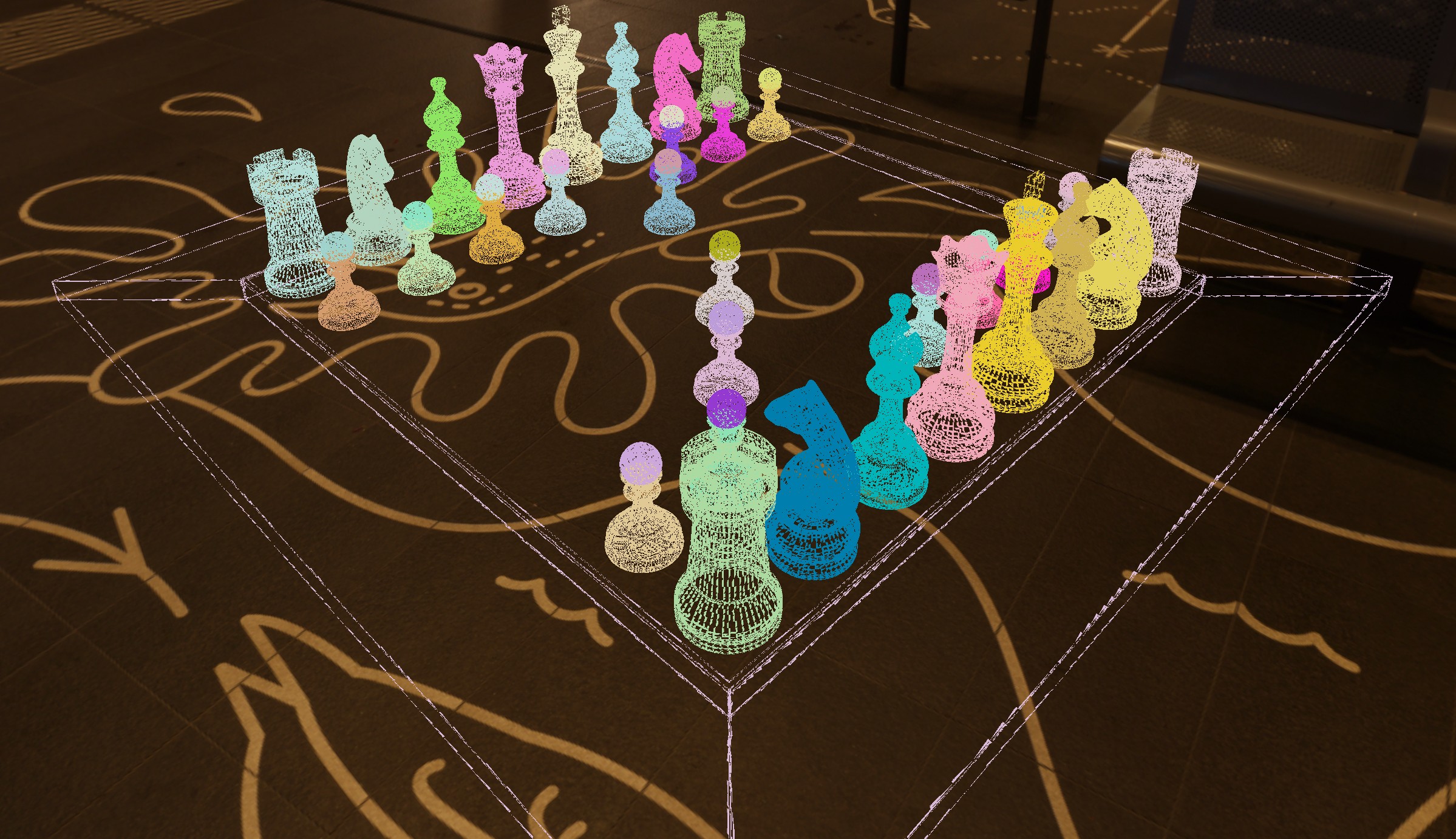
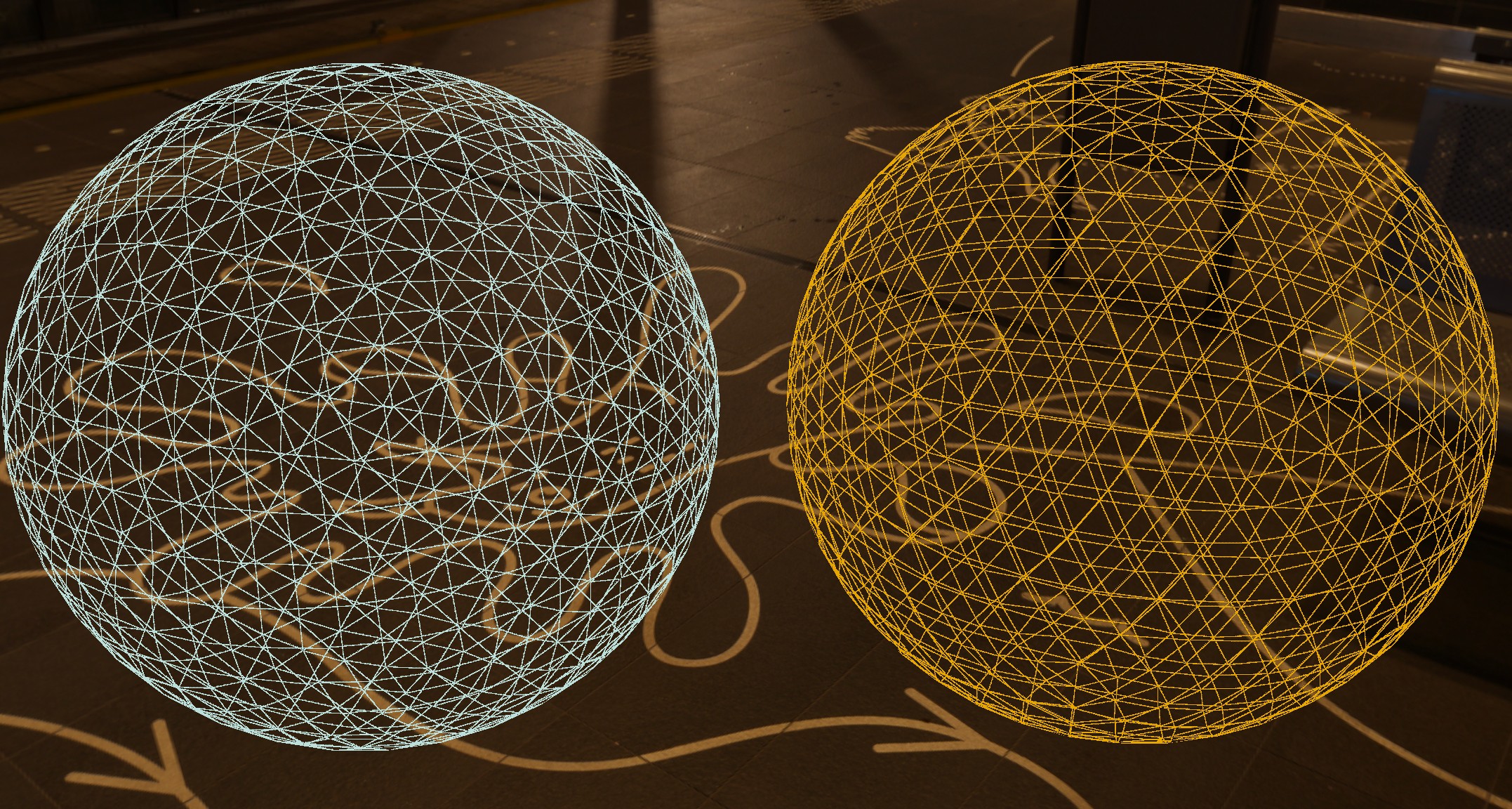
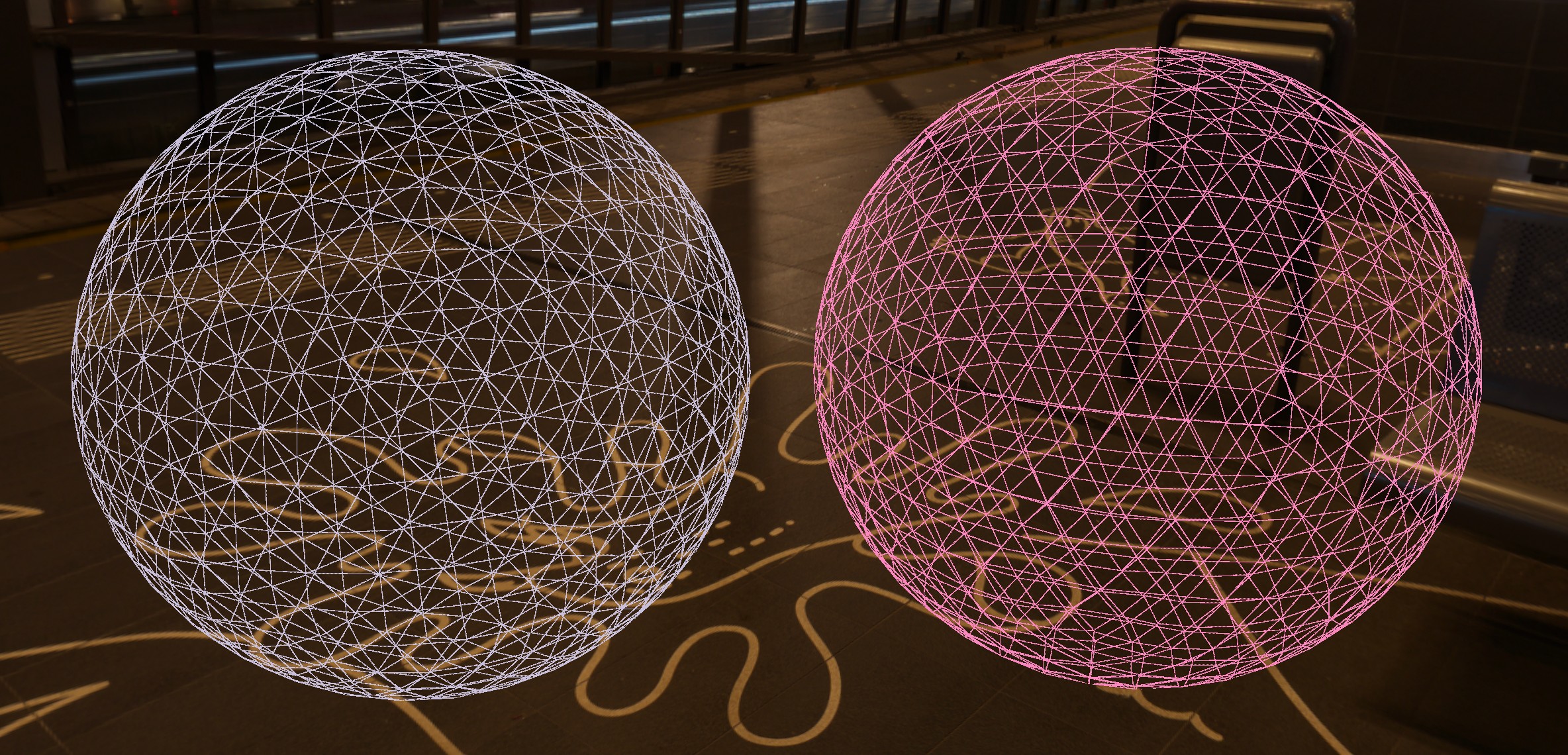
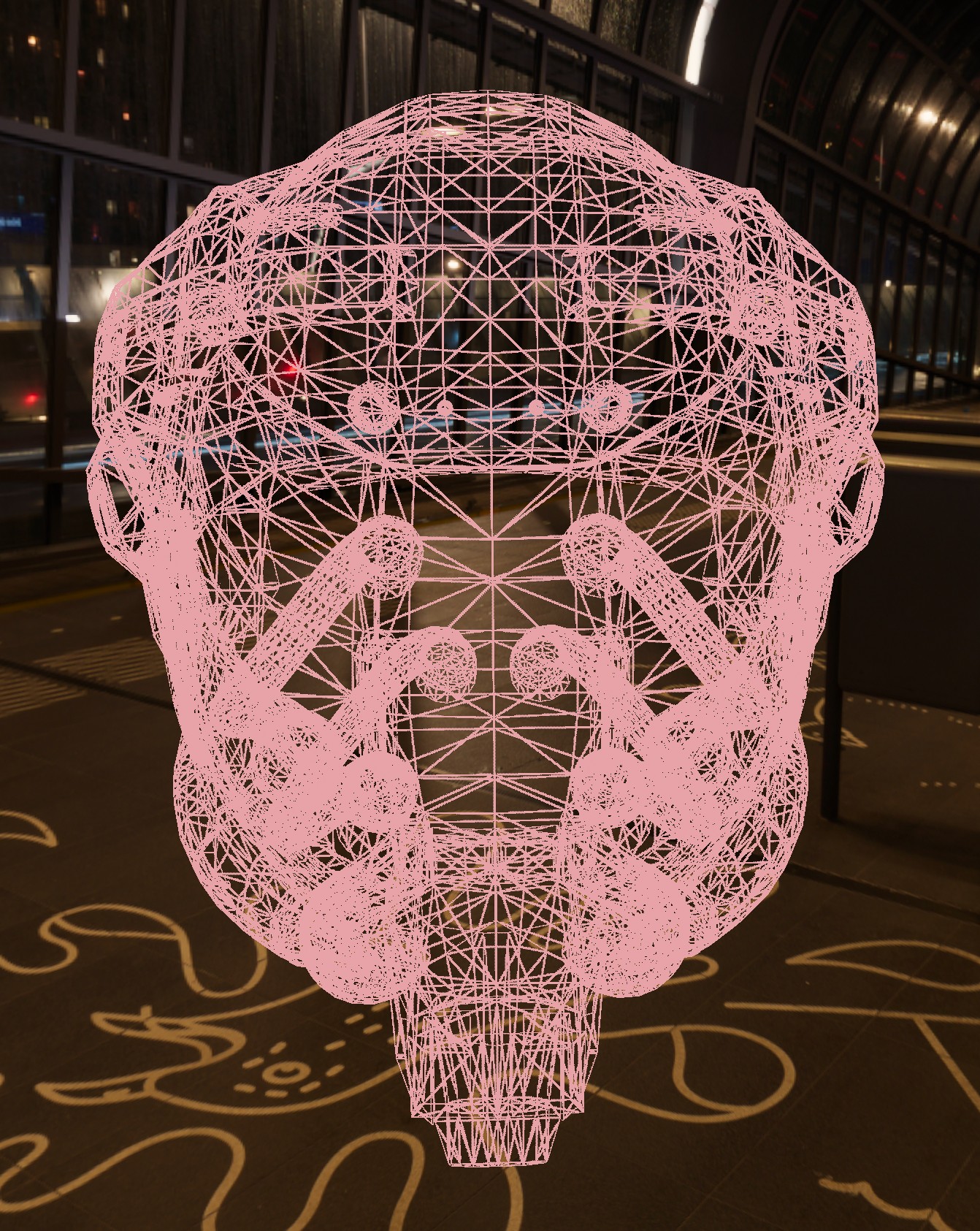
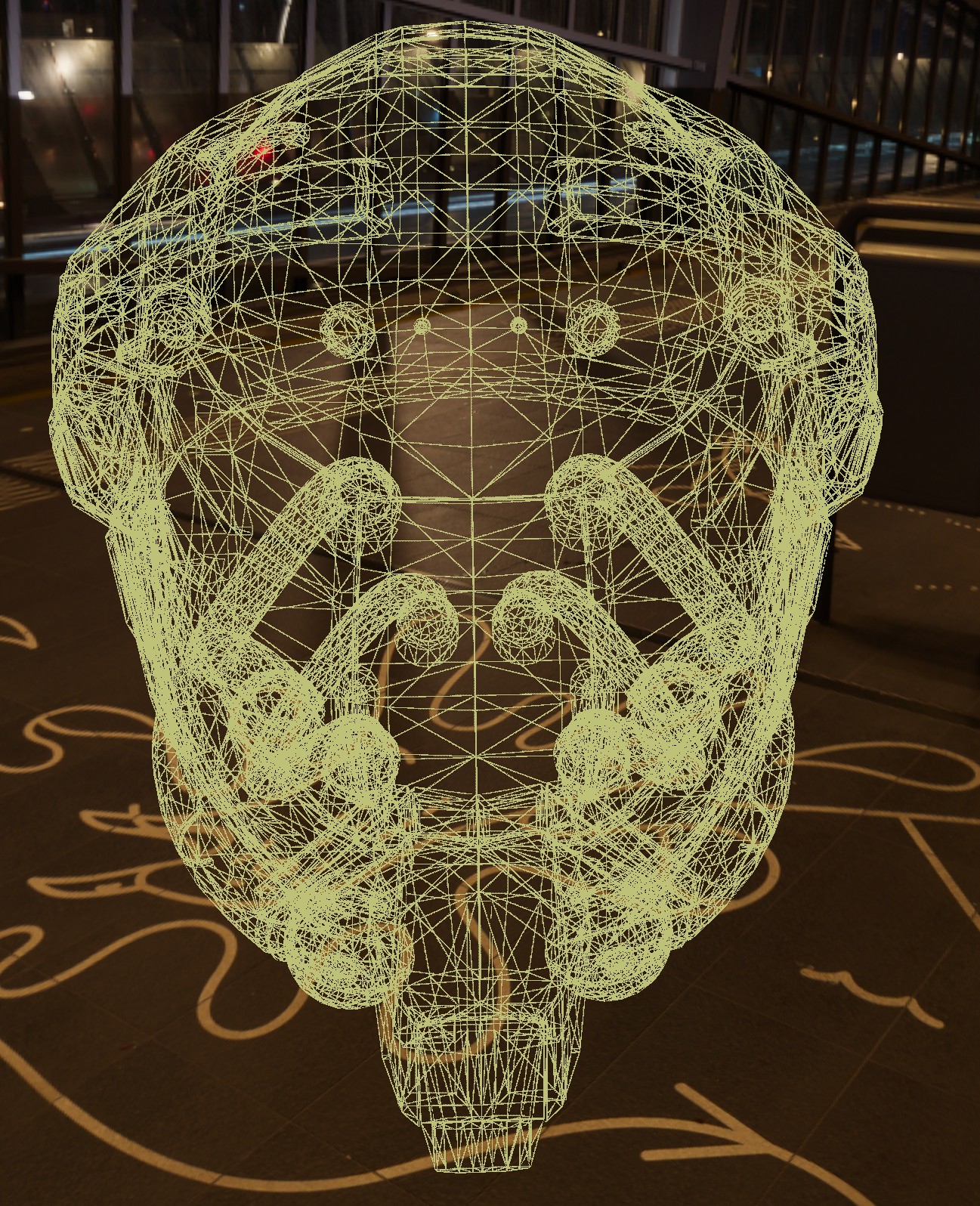
WireframeGenerationMode.Disabledmeans no wireframe data will be loaded alongside the mesh (this is the default).WireframeGenerationMode.Enabledgenerates unmodified wireframe data for the mesh. This option does no additional pre-processing which means the wireframe data is a fully accurate representation of the actual underlying vertex mesh.WireframeGenerationMode.EnabledWithEdgeDeduplicationremoves edges in the wireframe that are doubled-up along adjacent polygons, which prevents those shared edges being drawn twice (and therefore looking thicker than other lines). Although this mode technically generates a slightly-inaccurate representation of the mesh, it does not radically alter the wireframe data and is recommended for most use-cases.WireframeGenerationMode.EnabledWithEdgeDeduplicationAndFaceClearingdoes the same asEnabledWithEdgeDeduplicationbut also attempts to remove "noisy" triangulated faces/planes. In other words, this generates a wireframe that leaves most flat surfaces as "see-through" even if they are in reality comprised of multiple triangles. This mode most-drastically alters the wireframe and should be used when you want to preserve the clearest "shape" of the underlying mesh without necessarily needing to see its specific triangle make-up.
All enabled modes cost the same amount of VRAM and render time; the modes that remove edges do their extra work only once, when the mesh is created.
Note that wireframe data is never generated for skeletal (animated) meshes or for meshes created with AllowsPerInstanceVertexMutation enabled; the WireframeGenerationMode setting is ignored for those meshes.
Visual Comparison
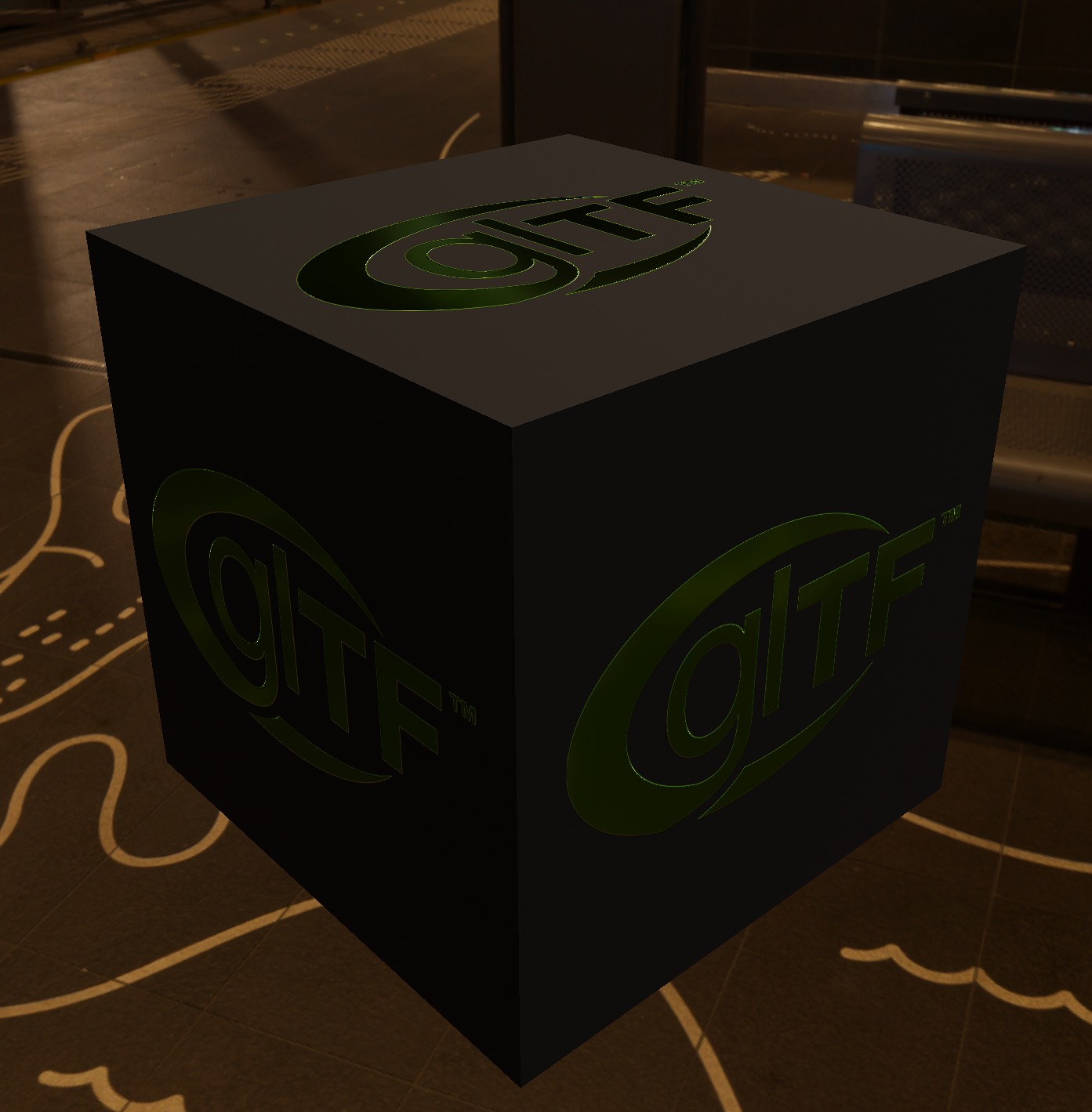
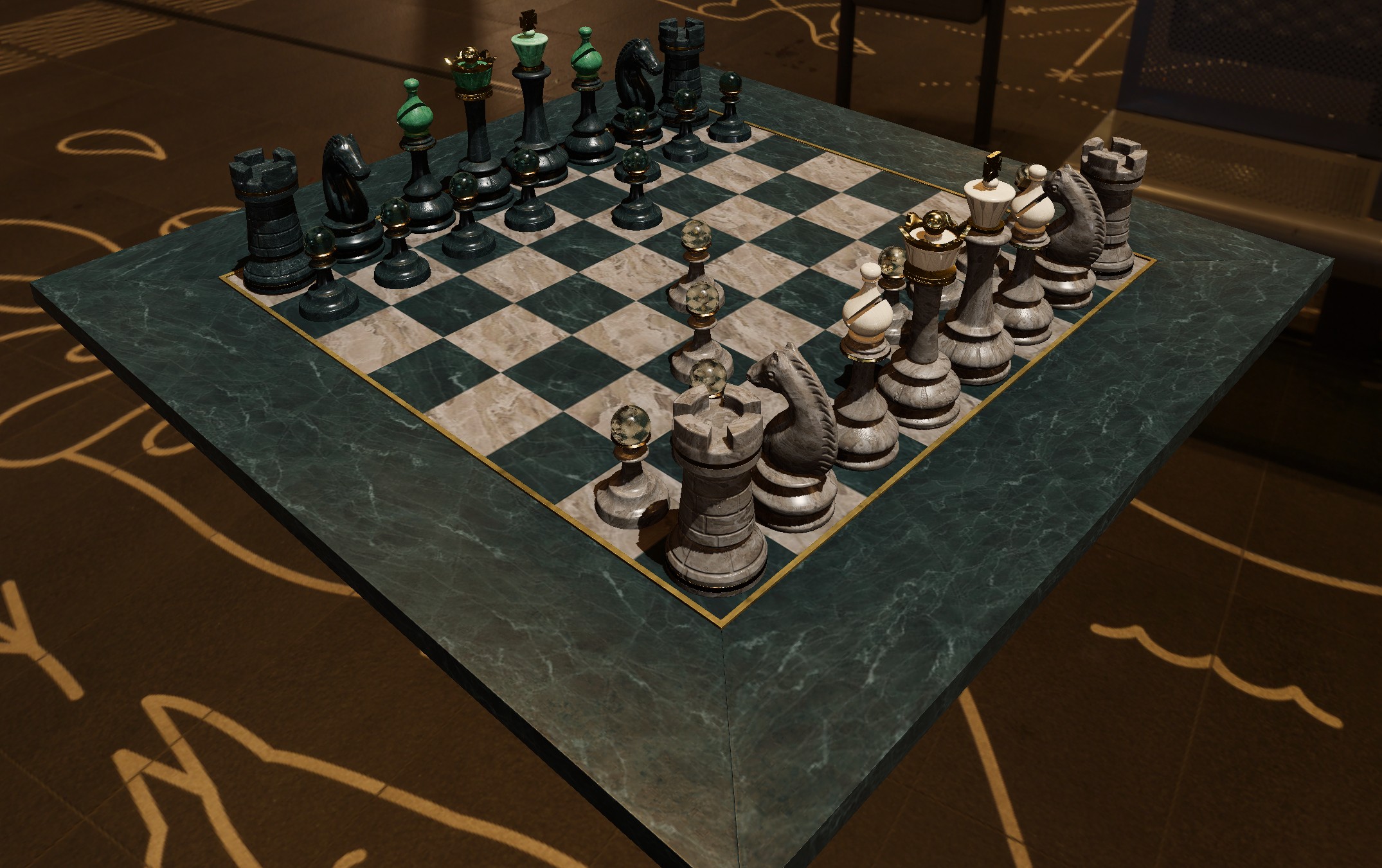
The images below show the difference in wireframe generation modes visually(1):
- Note the wireframe colour is randomized in each image and has no meaning here.
-
Cube
-
Enabled
-
EnabledWithEdgeDeduplication
-
EnabledWithEdgeDeduplicationAndFaceClearing
-
Chess
-
Enabled
-
EnabledWithEdgeDeduplication
-
EnabledWithEdgeDeduplicationAndFaceClearing
-
Spheres

-
Enabled

-
EnabledWithEdgeDeduplication
-
EnabledWithEdgeDeduplicationAndFaceClearing
-
Helmet

-
Enabled
-
EnabledWithEdgeDeduplication
-
EnabledWithEdgeDeduplicationAndFaceClearing
Sub-Meshes#
var readConfig = new MeshReadConfig();
var metadata = factory.AssetLoader.ReadMeshMetadata(@"Assets/chess_set.glb", readConfig);
Console.WriteLine($"File contains {metadata.SubMeshCount} sub-meshes ({metadata.TotalVertexCount} vertices, {metadata.TotalTriangleCount} triangles)");

var firstPiece = factory.AssetLoader.LoadMesh(
    @"Assets/chess_set.glb",
    new MeshCreationConfig(),
    readConfig with { SubMeshIndex = 0 }
);
Many mesh files contain more than one mesh (called "sub-meshes"). By default (when meshReadConfig.SubMeshIndex is null), LoadMesh() combines every sub-mesh in the file in to a single Mesh.
Alternatively, you can set SubMeshIndex to load only one specific sub-mesh. 0 is always a valid index. You can find out how many sub-meshes a file contains with factory.AssetLoader.ReadMeshMetadata(), which also reports the total vertex and triangle counts. Make sure you pass the same MeshReadConfig to ReadMeshMetadata() as you use when loading (see the warning in Optimisation & Error-Correction).
Skeletal Animation Data
TinyFFR can not combine the skeletal animation data from multiple sub-meshes in to one Mesh. If you load a file with multiple animated sub-meshes without specifying a SubMeshIndex, the skeletal animation data will be discarded (and a warning is written to the console). To keep it, use LoadMeshGroup() (or LoadBundledAsset()) instead, which loads every sub-mesh separately along with the skeleton and animations they share.
Mesh Groups#
using var characterMeshes = factory.AssetLoader.LoadMeshGroup(@"Assets/character.glb"); // (1)!
using var characterInstances = factory.ObjectBuilder.CreateModelInstances( // (2)!
    characterMeshes.Meshes,
    characterMaterial,
    animationTable: characterMeshes.AnimationTables.Count > 0 ? characterMeshes.AnimationTables[0] : null // (3)!
);
scene.Add(characterInstances);
-
This loads every sub-mesh in "character.glb" as its own
Mesh, and returns them together in aResourceGroup.If the sub-meshes have skeletal animation data, the group also contains one
MeshGroupAnimationTableholding the skeleton and animations they share. -
This creates one ModelInstance per mesh in the group, all using a presumed pre-existing
characterMaterial(passnullto use the default material instead). -
Passing the group's animation table links the returned
ModelInstanceGroupto it, if it exists.
LoadMeshGroup() is a sibling to LoadMesh(): rather than combining a file's sub-meshes in to one Mesh, it loads each sub-mesh as a separate Mesh, and returns them all in a single ResourceGroup. Like LoadMesh(), it only loads geometry (and skeletal animation data); no textures, materials, or models are created. If you want those too, use LoadBundledAsset().
Any non-null meshReadConfig.SubMeshIndex is ignored, as every sub-mesh is always loaded. All other MeshCreationConfig and MeshReadConfig properties apply to every mesh in the group.
Disposing the returned group disposes every mesh in it (and the animation table, if any).