Gamepad Input
-
 In a nutshell...
- Gamepad (game controller) states can be accessed via the
applicationLoop.Input.GameControllersproperty. Reading Input Event Data - You can also read all gamepads' states as one via the
applicationLoop.Input.GameControllersCombinedproperty. Reading Input Event Data - The
GameControllers/GameControllersCombinedinterfaces provide useful ways to query gamepad state (e.g. stick positions, trigger offsets, button states). ILatestGameControllerInputRetriever
- Gamepad (game controller) states can be accessed via the
Reading Input Event Data#
// Create a loop, iterate it, access the Input property
var loop = factory.ApplicationLoopBuilder.CreateLoop();
while (!loop.Input.UserQuitRequested) {
    var deltaTime = loop.IterateOnce().AsDeltaTime();

    var input = loop.Input;
    var gamepad = input.GameControllersCombined;
    if (gamepad.LeftStickPosition.IsOutsideDeadzone()) {
        MoveCharacter(gamepad);
    }

    // ... Use input data as desired, render frames, etc
}
All input data is accessed through an ILatestInputRetriever instance, via an ApplicationLoop (built via the factory's ApplicationLoopBuilder).
Not Supported in UI Frameworks or Headless Mode
When hosting TinyFFR inside a UI framework (such as Avalonia, WPF, WinForms, etc) it defers its input event collection to that host framework (so as not to 'steal' or conflict with that framework's event processing).
Unfortunately, no UI framework today has support for gamepad input retrieval, and therefore gamepads are not supported via TinyFFR when hosted in those frameworks.
Additionally, gamepad support is disabled when TinyFFR is started in "headless mode", e.g.:
var factory = new LocalTinyFfrFactory(
    // ⚠️ Enabling "HeadlessMode" like this means no gamepads will be discovered
    factoryConfig: new LocalTinyFfrFactoryConfig { HeadlessMode = true }
);
By default, the factory is not created in headless mode, but headless mode is suggested for UI framework integrations (e.g. Avalonia, WPF, WinForms, etc).
Every time the application loop is successfully iterated, the state of every input device (keyboard, mouse, gamepads) is updated.
GameControllers vs GameControllersCombined#
The GameControllers property returns an enumerable of ILatestGameControllerInputRetrievers; one per connected controller.
The GameControllersCombined property instead returns a single ILatestGameControllerInputRetriever that merges every connected controller's input in to one state, as though they were all the same device. This is usually what a single-player application wants, as it saves the user from having to use whichever particular controller the application happened to pick.
Note however, if two controllers are used at once their inputs simply interleave (with the most recent input winning) and for misbehaving devices this can be problematic, so you should at least offer users the option to defer to a specific single gamepad instead.
ILatestGameControllerInputRetriever#
The ILatestGameControllerInputRetriever interface (accessed via the GameControllers or GameControllersCombined properties) is how you can access gamepad updates. It provides the following members:
-
LeftStickPosition -
This returns a
GameControllerStickPositionindicating the current position of the left analog stick.See below for more information about using this value.
-
RightStickPosition -
This returns a
GameControllerStickPositionindicating the current position of the right analog stick.See below for more information about using this value.
-
LeftTriggerPosition -
This returns a
GameControllerTriggerPositionindicating the current position of the left trigger.See below for more information about using this value.
-
RightTriggerPosition -
This returns a
GameControllerTriggerPositionindicating the current position of the right trigger.See below for more information about using this value.
-
NewButtonEvents -
This returns an enumerable of
GameControllerButtonEvents that can be used to discover all the new button events in this loop iteration.Each
GameControllerButtonEventcontains two properties:- A
ButtonDownbool indicating whether this event is for a button being pressed (true) or released (false); - A
Buttonwhich is theGameControllerButtonthat is being pressed or released.
If there are no input updates this loop iteration, this iterator will be empty (0
Count). - A
-
NewButtonDownEvents -
This returns an enumerable of
GameControllerButtons that can be used to discover every button that was pressed in this loop iteration.(1)- Unfortunately this property does not inform you about new formal-dress parties in your area.
If you only care about buttons being pressed, not released, you can use this property to quickly iterate every new button press.
This property returns exactly the same set of button as you'd get iterating through
NewButtonEventsand filtering for events whereButtonDownistrue.If no buttons were pressed this loop iteration, this iterator will be empty (0
Count). -
NewButtonUpEvents -
This returns an enumerable of
GameControllerButtons that can be used to discover every button that was released in this loop iteration.If you only care about buttons being released, not pressed, you can use this property to quickly iterate every new button release.
This property returns exactly the same set of buttons as you'd get iterating through
NewButtonEventsand filtering for events whereButtonDownisfalse.If no buttons were released this loop iteration, this iterator will be empty (0
Count). -
CurrentlyPressedButtons -
This returns an enumerable of
GameControllerButtons that can be used to discover every button that is currently being pressed/held-down by the user.Note that this is not the same as
NewButtonDownEventsas this iterator enumerates buttons that were pressed in previous loop iterations but are still being pressed/held-down in this iteration.If no buttons are currently being pressed in this loop iteration, this iterator will be empty (0
Count). -
ButtonIsCurrentlyDown(GameControllerButton button) -
This convenience method lets you quickly know whether a specific button is currently being pressed/held-down.
-
ButtonWasPressedThisIteration(GameControllerButton button) -
This convenience method lets you quickly know whether a specific button was pressed this loop iteration.
-
ButtonWasReleasedThisIteration(GameControllerButton button) -
This convenience method lets you quickly know whether a specific button was released this loop iteration.
GameControllerButton Enum#
This enum contains every supported game controller button. It also includes LeftTrigger and RightTrigger; although these are not technically buttons the API will emit events for them when they're pressed past a threshold of 15% of their maximum travel distance (i.e. when their DisplacementLevel becomes anything other than AnalogDisplacementLevel.None), and released again when they return below it.
Enum Value Names Refer to XBOX Layout
The buttons are named according to the XBOX controller layout.
For example, GameControllerButton.X refers to the "X" button on an XBOX controller, but refers to the square button on a PlayStation controller, and the "Y" button on a Nintendo-style one.
The full list of buttons is:
- A, B, X, Y The four face buttons (bottom, right, left, and top respectively; see warning above).
- SelectOrView The secondary centre button, conventionally used to go back or open a secondary menu (labelled "View", "Select", "Share", or "Back" depending on the controller).
- StartOrMenu The primary centre button, conventionally used to start the game or open the main menu (labelled "Menu", "Start", or "Options" depending on the controller).
- Logo The central logo/guide button (e.g. the XBOX, PlayStation, or Home button). Many operating systems intercept this button for their own purposes, so it may not reliably reach your application.
- LeftStick, RightStick Pressing the left/right analog stick inwards like a button (sometimes known as "L3"/"R3").
- LeftBumper, RightBumper The upper shoulder buttons (sometimes known as "LB"/"RB" or "L1"/"R1").
- DirectionalPadUp, DirectionalPadDown, DirectionalPadLeft, DirectionalPadRight The four directions on the D-pad.
- Misc An additional button whose purpose varies by controller (e.g. a share, capture, or microphone button). Only present on some controllers.
- Paddle1, Paddle2, Paddle3, Paddle4 Up to four extra paddles on the back of the controller, numbered according to the controller's own labelling. Only present on some controllers.
- TouchPad Pressing the controller's touchpad inwards like a button. Only present on some controllers.
- LeftTrigger, RightTrigger The triggers, treated as simple on/off buttons (see above). Use
LeftTriggerPosition/RightTriggerPositionif you want to know how far a trigger is pulled. - Unknown An unknown or unrecognised button.
GameControllerStickPosition Struct#
When using the LeftStickPosition or RightStickPosition property on an ILatestGameControllerInputRetriever you will be returned a GameControllerStickPosition with the following members:
Displacement#
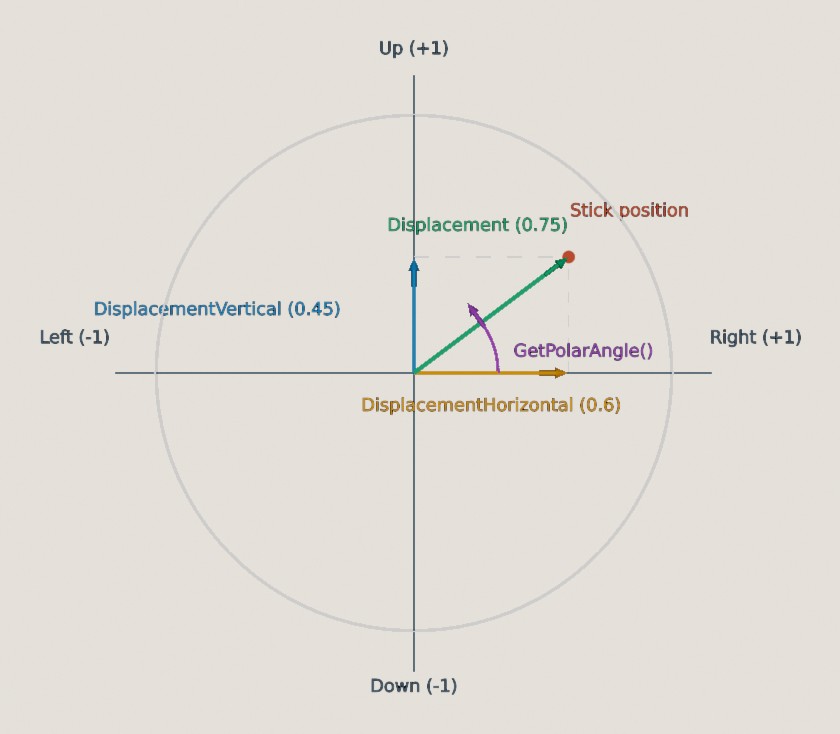
A stick pushed up and to the right. DisplacementHorizontal and DisplacementVertical measure how far it's pushed along each axis, Displacement measures how far it's pushed from the centre in any direction, and GetPolarAngle() gives the direction it's pushed in.
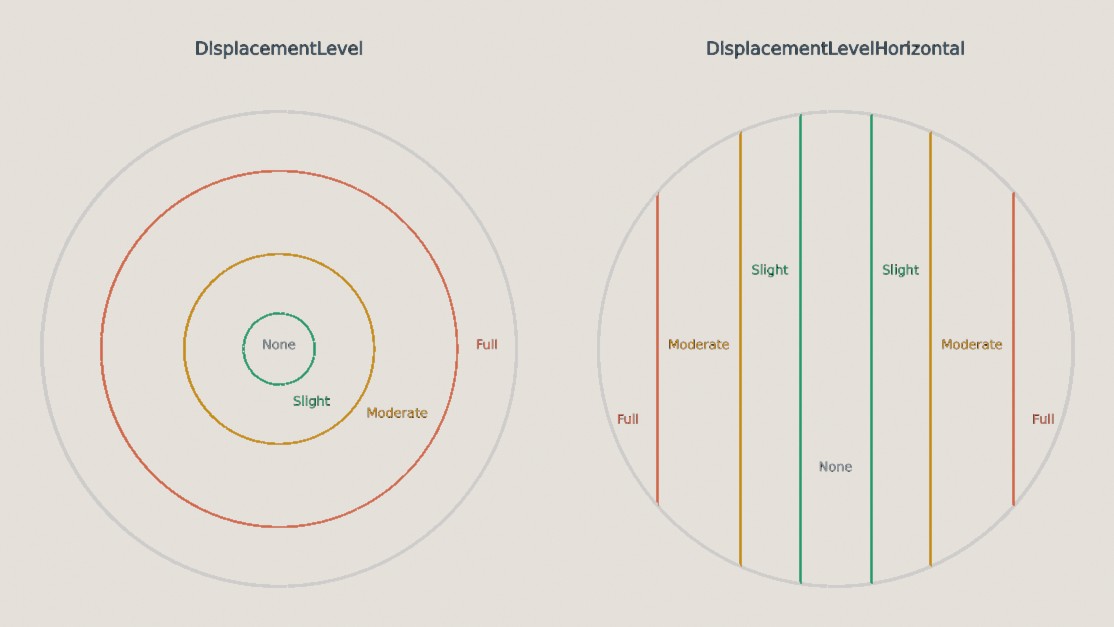
Left: DisplacementLevel depends only on how far the stick is from the centre, so its levels form rings (the innermost ring is also the deadzone used by IsOutsideDeadzone()). Right: DisplacementLevelHorizontal depends only on the horizontal position, so its levels form vertical bands. DisplacementLevelVertical is the same, but with horizontal bands.
-
Displacement -
This returns a
floatin the range0fto1f, indicating how far the stick is currently moved away from its centre position in any direction.A value of
1findicates fully moved away from the centre; a value of0findicates the stick is centered (both vertically and horizontally). -
DisplacementHorizontal -
This returns a
floatin the range1fto-1f, indicating how far the stick is currently moved horizontally.A value of
1findicates fully moved to the right; a value of-1findicates fully moved to the left; a value of0findicates the stick is centered horizontally.You will only see a value of
1f/-1fwhen the stick is pushed hard to the left/right, not in a diagonal position.A value of
0findicates that there is no horizontal displacement, but not necessarily that the stick is in its centre position- it may be pushed up or down. -
DisplacementVertical -
This returns a
floatin the range1fto-1f, indicating how far the stick is currently moved vertically.A value of
1findicates fully moved to the top; a value of-1findicates fully moved to the bottom; a value of0findicates the stick is centered vertically.You will only see a value of
1f/-1fwhen the stick is pushed hard to the top/bottom, not in a diagonal position.A value of
0findicates that there is no vertical displacement, but not necessarily that the stick is in its centre position- it may be pushed left or right. -
DisplacementLevel -
This returns an
AnalogDisplacementLevelenum value that can be used to quickly determine the rough level of displacement. See below for the possible values. -
DisplacementLevelHorizontal -
This returns an
AnalogDisplacementLevelenum value that can be used to quickly determine the rough level of horizontal displacement. See below for the possible values. -
DisplacementLevelVertical -
This returns an
AnalogDisplacementLevelenum value that can be used to quickly determine the rough level of vertical displacement. See below for the possible values. -
IsOutsideDeadzone() -
Returns
trueorfalsedepending on whether theDisplacementis outside a deadzone.This method takes an optional parameter allowing you to set the size of the deadzone from
0fto1f. If not specified, the default recommended size will be used. -
IsOutsideDeadzoneVertical() -
Returns
trueorfalsedepending on whether theDisplacementVerticalis outside a deadzone.This method takes an optional parameter allowing you to set the size of the deadzone from
0fto1f. If not specified, the default recommended size will be used. -
IsOutsideDeadzoneHorizontal() -
Returns
trueorfalsedepending on whether theDisplacementHorizontalis outside a deadzone.This method takes an optional parameter allowing you to set the size of the deadzone from
0fto1f. If not specified, the default recommended size will be used. -
GetDisplacementWithDeadzone() -
Returns
Displacementadjusted according to a deadzone.If
Displacementis below the deadzone value this method returns0f. Otherwise, it returns a value from0fto1fwhich isDisplacementrescaled to the remaining non-deadzone area (e.g. if the deadzone is0.2fandDisplacementis0.6f, this method will return0.5f, indicating the displacement is half way between the deadzone and the max value.)This method takes an optional parameter allowing you to set the size of the deadzone from
0fto1f. If not specified, the default recommended size will be used. -
GetDisplacementVerticalWithDeadzone() -
Returns
DisplacementVerticaladjusted according to a deadzone.If the magnitude of
DisplacementVerticalis below the deadzone value this method returns0f. Otherwise, it returns a value from-1fto1fwhich isDisplacementVerticalrescaled to the remaining non-deadzone area, keeping its sign (e.g. if the deadzone is0.2fandDisplacementVerticalis0.6f, this method will return0.5f, indicating the displacement is half way between the deadzone and the max value; ifDisplacementVerticalis-0.6fit will return-0.5f). Positive values indicate the top, negative the bottom.This method takes an optional parameter allowing you to set the size of the deadzone from
0fto1f. If not specified, the default recommended size will be used. -
GetDisplacementHorizontalWithDeadzone() -
Returns
DisplacementHorizontaladjusted according to a deadzone.If the magnitude of
DisplacementHorizontalis below the deadzone value this method returns0f. Otherwise, it returns a value from-1fto1fwhich isDisplacementHorizontalrescaled to the remaining non-deadzone area, keeping its sign (e.g. if the deadzone is0.2fandDisplacementHorizontalis0.6f, this method will return0.5f, indicating the displacement is half way between the deadzone and the max value; ifDisplacementHorizontalis-0.6fit will return-0.5f). Positive values indicate the right, negative the left.This method takes an optional parameter allowing you to set the size of the deadzone from
0fto1f. If not specified, the default recommended size will be used. -
GetRawDisplacementValues(out short horizontal, out short vertical) -
The raw input API used by TinyFFR emits controller data as two signed 16-bit values, one each for the horizontal and vertical axes.
If you wish to bypass TinyFFR's abstractions and use these values directly, this method allows you to do that.
These are the values reported by SDL, specifically SDL_ControllerAxisEvent, with one exception: the vertical value is negated so that positive values indicate up (SDL reports positive values as down). This keeps the raw values consistent with the rest of TinyFFR's API.
Orientation / Angle#
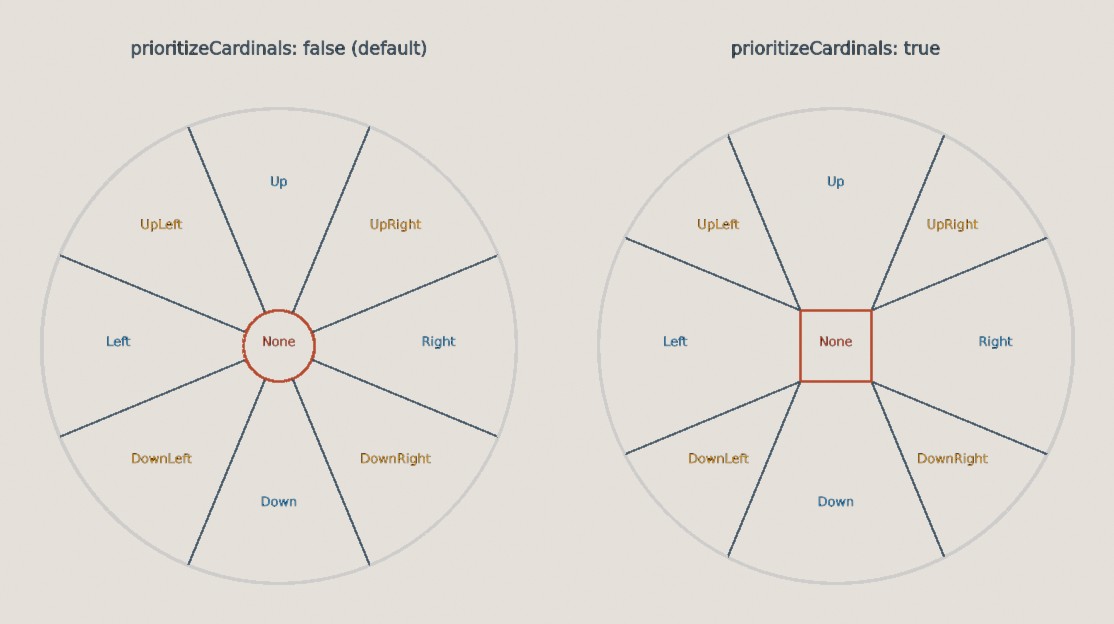
The Orientation2D returned by GetOrientation() for each stick position, using the recommended deadzone. Left: by default, the deadzone is a circle and the eight directions are equal slices. Right: with prioritizeCardinals: true, the deadzone is applied to each axis separately, so the None region is a square and pushing the stick close to an axis reports exactly Up, Down, Left, or Right.
-
AsXYPair() -
Returns an
XYPair<float>containingGetDisplacementHorizontalWithDeadzone()asXandGetDisplacementVerticalWithDeadzone()asY. Each component is therefore in the range-1fto1f(positiveXis right, positiveYis up).This method takes an optional parameter allowing you to set the size of the deadzone from
0fto1f. If not specified, the default recommended size will be used. -
GetPolarAngle() -
Returns an
Angle?indicating which direction the stick is being pushed towards, ornullif the stick is within the deadzone.A value of
0°indicates the stick is being pushed exactly to the right;90°to the top;180°to the left;270°to the bottom. This follows the polar co-ordinate / unit circle convention.This method takes an optional parameter allowing you to set the size of the deadzone from
0fto1f. If not specified, the default recommended size will be used.It also takes an optional
prioritizeCardinalsparameter. By default (false), the angle is the stick's exact direction, andnullis returned only whenDisplacementis within the deadzone. Whentrue, the deadzone is applied to each axis separately (as inAsXYPair()), so small sideways movements are ignored and a stick pushed close to an axis reports exactly0°,90°,180°, or270°. -
GetOrientation() -
Returns an
Orientation2Denum value indicating which way the stick is being pushed.The orientation is one of eight directions (e.g.
Right,UpRight,Up, etc.), determined by which 45° sectorGetPolarAngle()falls in. If the stick is within the deadzone, returnsOrientation2D.None.This method takes an optional parameter allowing you to set the size of the deadzone from
0fto1f. If not specified, the default recommended size will be used.It also takes an optional
prioritizeCardinalsparameter, which changes how the deadzone and directions are worked out (see the diagram below):false(the default): The deadzone is circular, and each of the eight directions covers an equal slice of the circle. This suits uses where every direction should be treated equally, such as a radial menu.true: The deadzone is applied to each axis separately, making it square, and small sideways movements are ignored; so a stick pushed close to an axis always reportsUp,Down,Left, orRight. This can suit uses that favour the four main directions, such as navigating a menu like a directional pad.
-
GetVerticalOrientation() -
Returns a
VerticalOrientation2Denum value indicating which way the stick is being pushed along the up/down axis.This is the vertical component of
GetOrientation(), rather than being calculated from the vertical axis alone. This means, for example, that a stick pushed mostly to the right and slightly upwards will have an orientation ofRight, and therefore this method will returnVerticalOrientation2D.Noneeven ifDisplacementVerticalis outside the deadzone. If you want to inspect the vertical axis alone, useIsOutsideDeadzoneVertical()andDisplacementVerticalinstead.This method takes the same optional deadzone size and
prioritizeCardinalsparameters asGetOrientation(). -
GetHorizontalOrientation() -
Returns a
HorizontalOrientation2Denum value indicating which way the stick is being pushed along the left/right axis.This is the horizontal component of
GetOrientation(), rather than being calculated from the horizontal axis alone. This means, for example, that a stick pushed mostly upwards and slightly to the right will have an orientation ofUp, and therefore this method will returnHorizontalOrientation2D.Noneeven ifDisplacementHorizontalis outside the deadzone. If you want to inspect the horizontal axis alone, useIsOutsideDeadzoneHorizontal()andDisplacementHorizontalinstead.This method takes the same optional deadzone size and
prioritizeCardinalsparameters asGetOrientation().
GameControllerTriggerPosition Struct#
-
Displacement -
This returns a
floatin the range0fto1f, indicating how far the trigger has been pulled.A value of
1findicates fully squeezed down; a value of0findicates the trigger is in its default un-pulled state. -
DisplacementLevel -
This returns an
AnalogDisplacementLevelenum value that can be used to quickly determine the rough level of displacement. See below for the possible values. -
GetDisplacementWithDeadzone() -
Returns
Displacementadjusted according to a deadzone.If
Displacementis below the deadzone value this method returns0f. Otherwise, it returns a value from0fto1fwhich isDisplacementrescaled to the remaining non-deadzone area (e.g. if the deadzone is0.2fandDisplacementis0.6f, this method will return0.5f, indicating the displacement is half way between the deadzone and the max value.)This method takes an optional parameter allowing you to set the size of the deadzone from
0fto1f. If not specified, the default recommended size will be used. -
GetRawDisplacementValue() -
The raw input API used by TinyFFR emits the trigger displacement value as a signed 16-bit integer.
If you wish to bypass TinyFFR's abstractions and use this value directly, this method allows you to do that.
This is the value reported by SDL, specifically SDL_ControllerAxisEvent.
AnalogDisplacementLevel Enum#
The DisplacementLevel properties on GameControllerTriggerPosition and GameControllerStickPosition (as well as DisplacementLevelHorizontal/DisplacementLevelVertical on sticks) let you quantize how far a trigger is squeezed or a stick is pushed to an AnalogDisplacementLevel. This can be useful if you want to quickly differentiate logic depending on how far the user has moved the input to a few different levels. The descriptions below refer to triggers, but the same thresholds apply to sticks (as a fraction of their maximum displacement from centre):
-
Full Indicates a trigger has been squeezed more than 75% of its max travel distance.
-
Moderate Indicates a trigger has been squeezed between 40% and 75% of its max travel distance.
-
Slight Indicates a trigger has been squeezed between 15% and 40% of its max travel distance.
-
None Indicates a trigger has been squeezed less than 15% of is max travel distance.(1)
- The reason this is 15% and below (rather than 0%) is to incorporate a small natural deadzone.